Connect
Connections
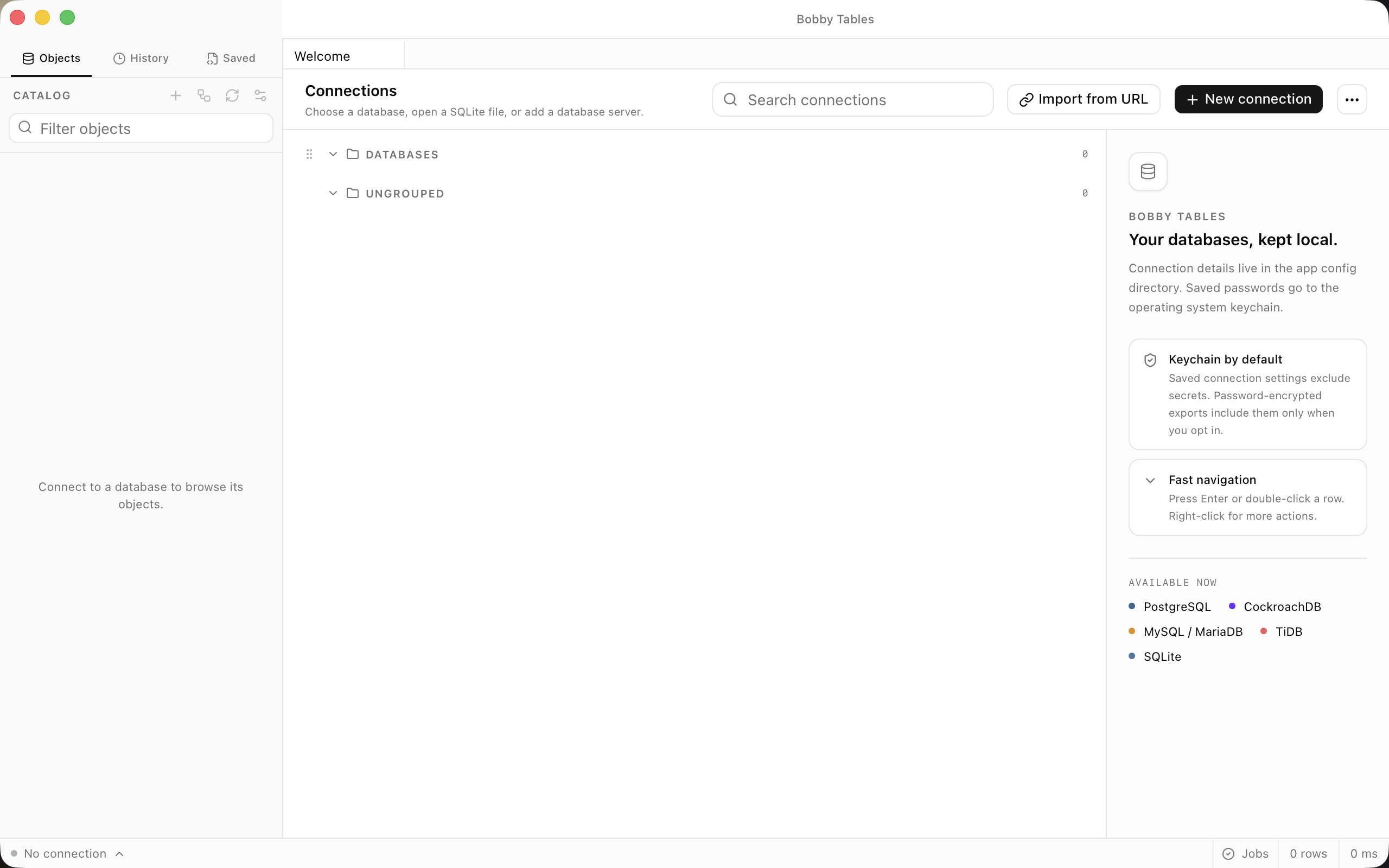
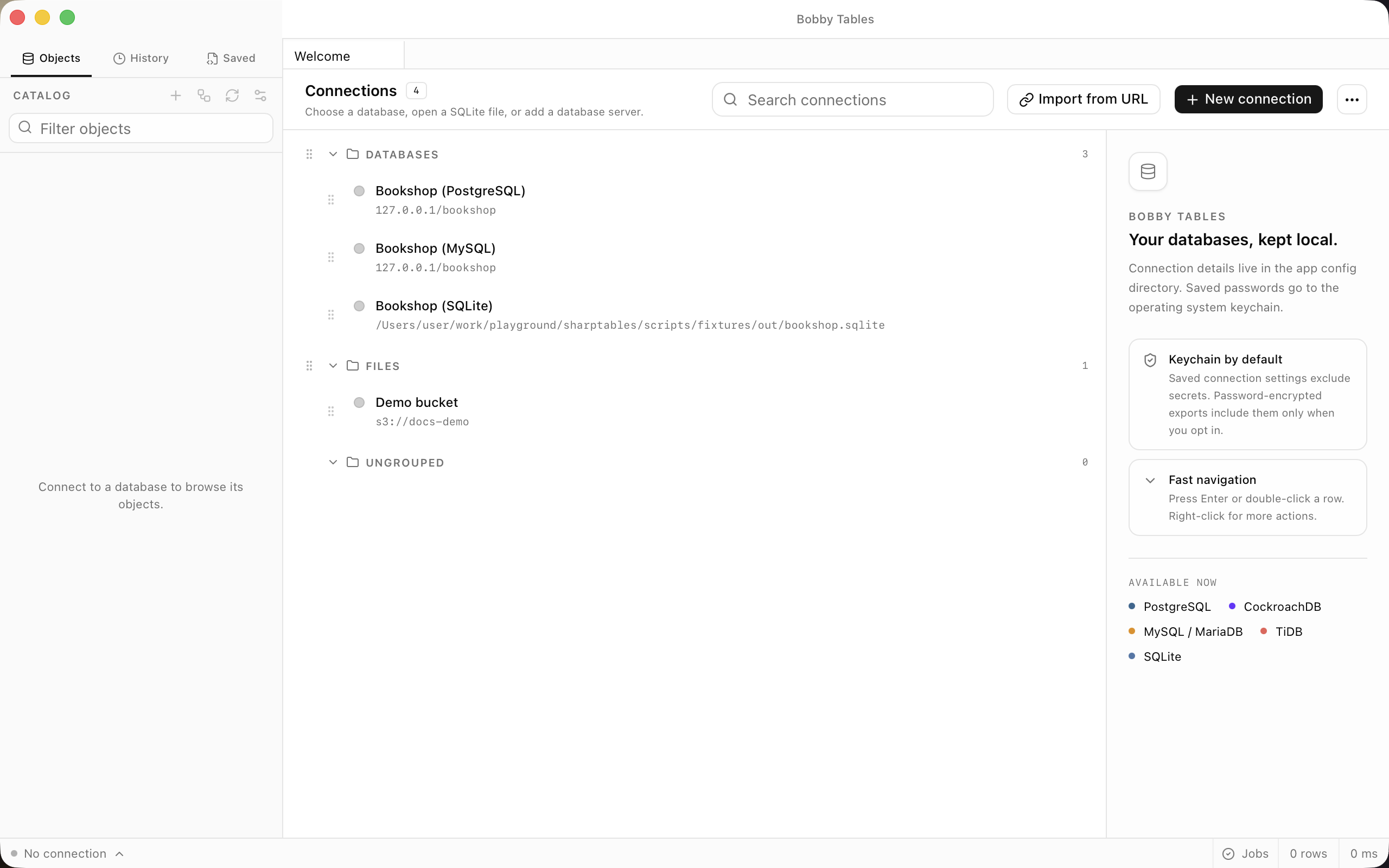
Bobby Tables keeps databases and file storage in one list of saved connections. Each connection has a name, a colour and a group, and opens in its own workspace.
Where to find it
| Action | How |
|---|---|
| Create a connection | New connection, ⌘N (Ctrl+N) |
| Switch connection | ⌘⇧K (Ctrl+Shift+K) |
| Switch database | ⌘K (Ctrl+K) |
| Open another window | ⌘⌥N (Ctrl+Alt+N) |
Use the connection list on the welcome screen or in the sidebar to open, edit and organise saved connections.
Adding a connection
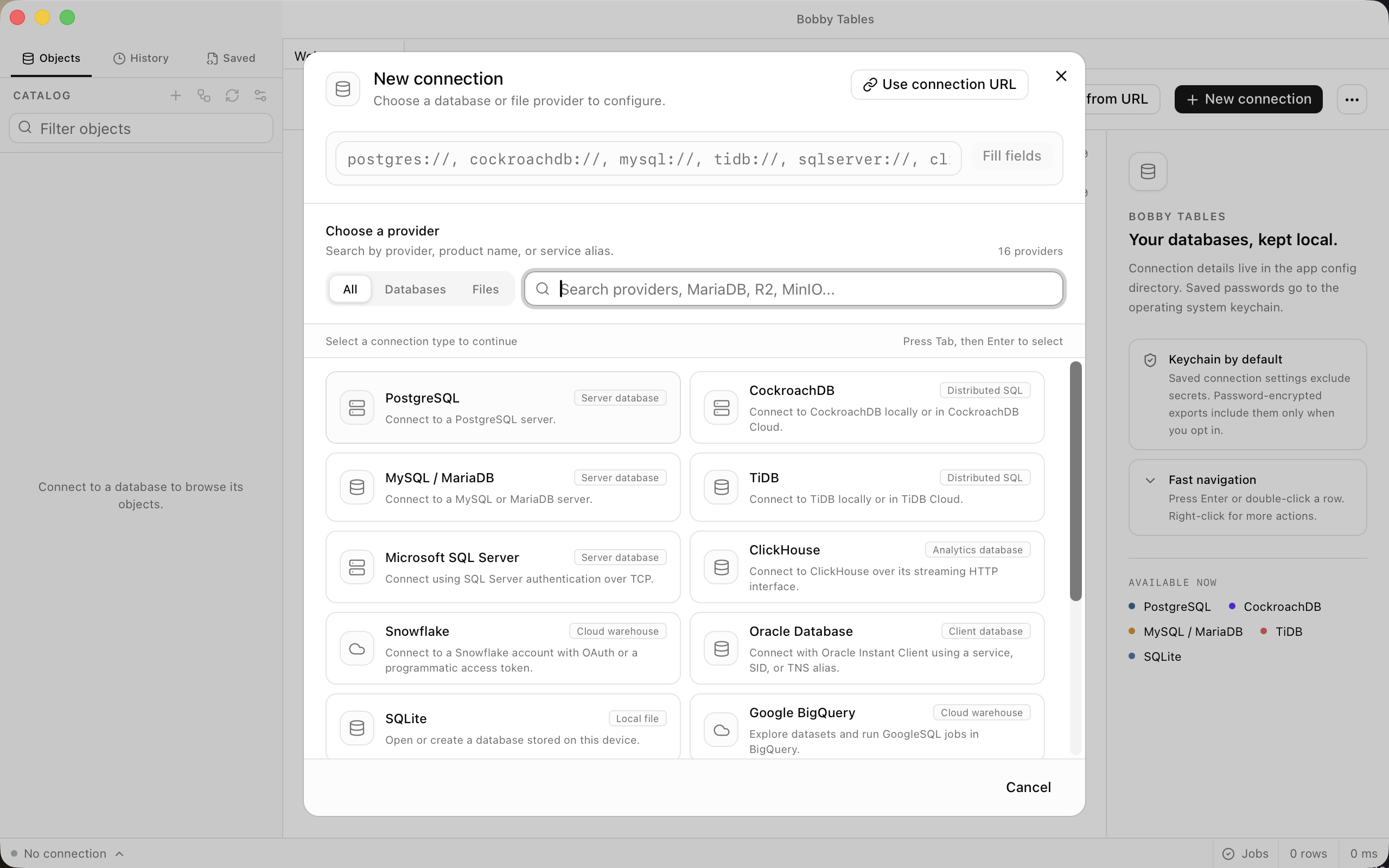
Select New connection, then choose a database or file provider. The form changes for the provider you select, and shows the server, account and file settings it needs.
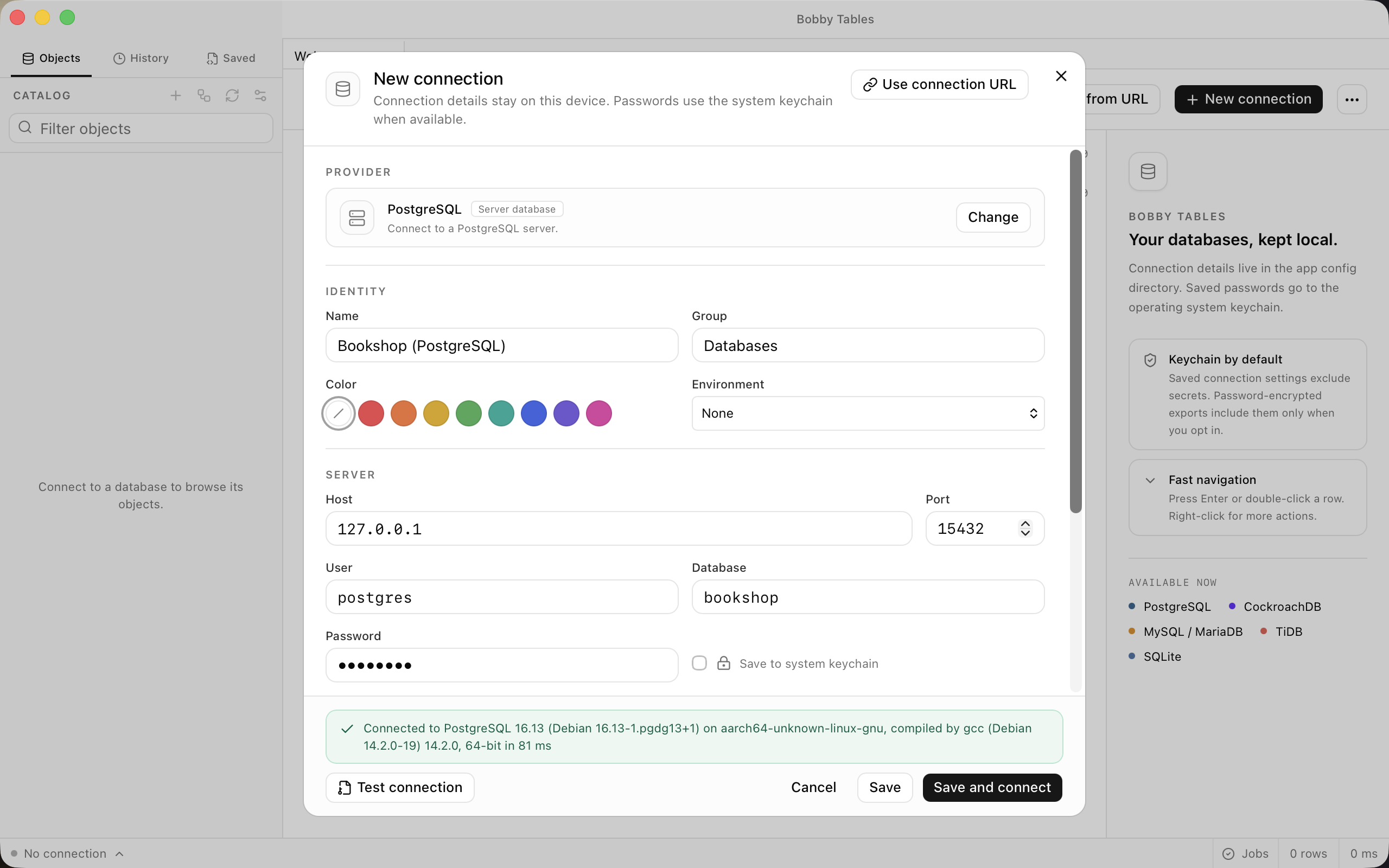
Choose Test connection before saving. A successful test reports the server version and round trip beside the button, so you can confirm that the saved settings reach the intended service.
Pasting a URL
Paste a connection URL into Connection URL, then choose Fill fields. Bobby Tables fills the matching host, port, account and database fields, including a password when the URL has one.
The password remains in the form for this session. Select the keychain option only when you want the operating system to store it. Use the URL scheme for the provider you select.
Groups, colours and environments
Use Name, Group and the colour control to make a saved list easy to scan. Groups collect related connections, while a colour appears in the status bar of every workspace opened from that connection.
Set an environment tag for a production connection. Bobby Tables marks the environment in the status bar and tints the window so it remains visible while you work.
Passwords and read-only connections
Connection definitions live in connections.json in the app config directory. Passwords and other secrets live separately in macOS Keychain or Linux Secret Service. When a keychain is unavailable, Bobby Tables asks for the secret when you connect.
Enable the read-only option when a connection must not change data. PostgreSQL and CockroachDB set a read-only session, MySQL sets a read-only transaction, TiDB and Oracle block writes in the app, and SQLite opens the file read-only. The interface also disables editing controls and marks the status bar as read-only.
Workspaces and session restore
Open several connections at once. Their workspaces appear in the workspace strip, and Switch connection moves between them. Closing a workspace checks for uncommitted edits before it closes.
On launch, Bobby Tables can offer to restore the last session, including its workspaces and query tabs. The offer does not block the window, and starting something new begins a fresh session.
Good to know
- SQLite uses a local file path and does not need a server.
- MySQL and MariaDB share the
MySQL / MariaDBprovider choice. - S3 and SFTP connections open the Files workspace.
- Saved connections are included with a license.