Files
Bucket backups
Save a backup between two S3 connections and run it whenever you want, as a dated folder or as a mirror, with the route and the counts shown before anything is copied.
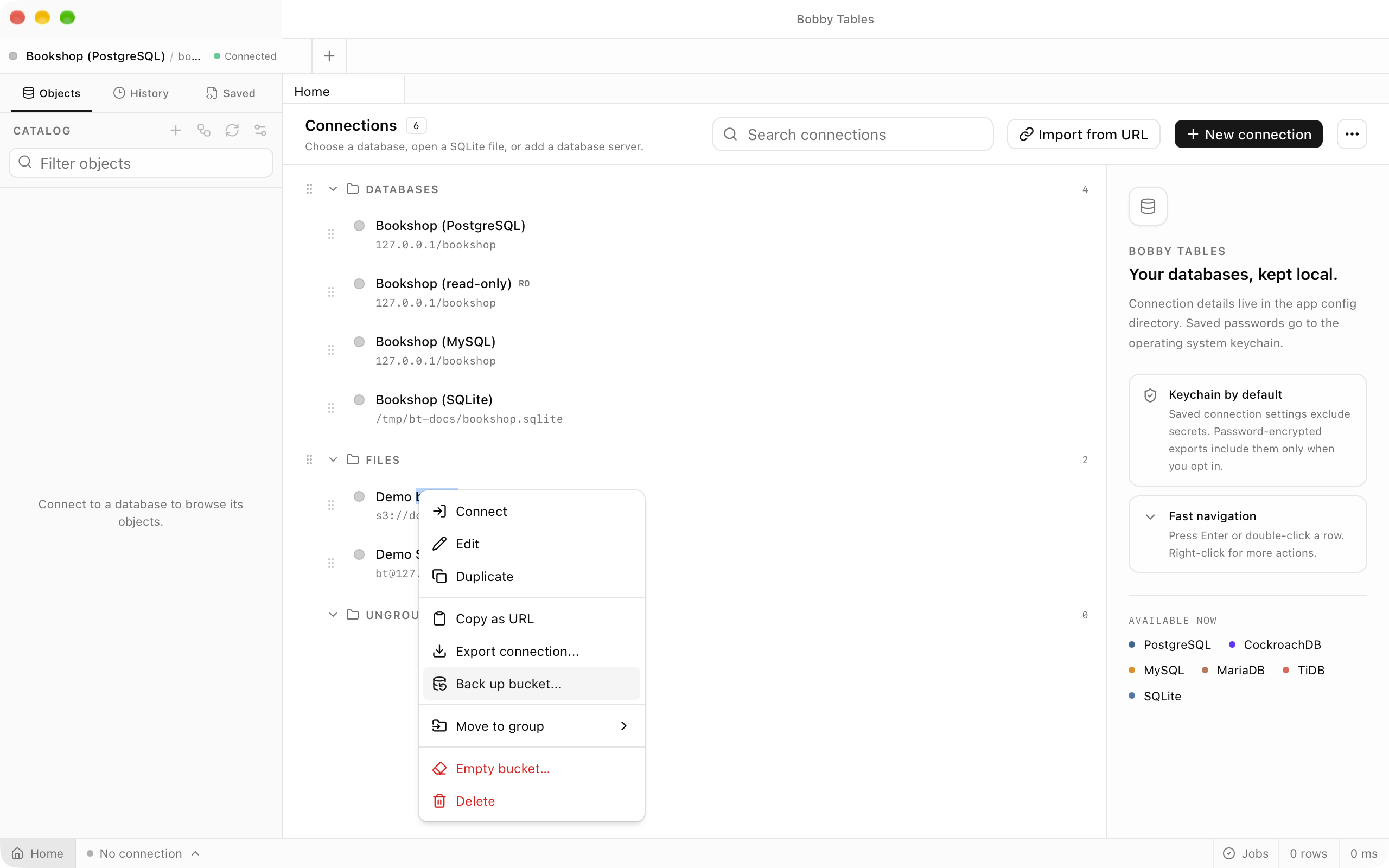
Where to find it
| Action | How |
|---|---|
| Back up a bucket | Back up bucket... in an S3 connection's context menu |
| Back up the folder a pane shows | Back up this folder… in the pane's options menu |
| See saved backups and their runs | Backups at the right end of the Files toolbar |
| Start a backup from scratch | New backup in Backups |
A backup always reads from an S3 connection, and writes to another S3 connection or to a folder on this computer.
Setting up a backup
The dialog fixes the source to the connection you started from and fills in a name once you choose a destination. Choose another S3 connection and, if you like, a Key prefix to write under, or choose Local and a folder on this computer. Scope copies the Whole bucket, or only the Current location when you started from an open folder. The source bucket is never offered as its own destination.
Previewing a backup
Preview backup lists both sides and works out every action a run would take, without writing to either one. The summary counts objects to copy, skip and delete and the bytes to copy, the line below names the route, and the table shows the first 500 actions. Stop ends the preview and leaves the dialog open. For a local folder, the preview also warns when the copy will not fit on the volume.
Dated folders and mirrors
Under Each run, Writes into a new folder named by date and time copies everything into a fresh dated folder on every run and never deletes. Mirrors the source into the destination copies only new and changed objects, so a second run with nothing changed skips everything. Tick Delete them to also remove objects under the destination prefix that the source no longer has; the run asks you to confirm first, and nothing it deletes can be recovered.
Route and storage class
When both connections use the same S3 endpoint and access key, objects are copied on the server, including objects over 5 GB; otherwise each object streams through this computer. Storage class sets the class every copied object is written with, and Standard leaves the bucket's default. The dialog notes when a service may refuse a class, and a run started with any other class first checks that the destination accepts it. Verify object count and size after the run lists the destination afterwards and records a failure if the totals differ.
Running and the Backups panel
Start backup or Start mirror saves the backup and starts a job, while Save keeps it for later. The job row counts copied and skipped objects, bytes and a rate, with the route badge. Backups lists every saved backup with its latest status, and each run with when it started, how long it took, its counts, route and failures. Run now starts the selected backup again, and the pencil button edits it.
Failures and resuming
A failed object does not stop a run: it is retried once at the end, and any that still fail mark the run Completed with failures, with the count under Failures opening the list. A run you cancel, or one the app did not finish because it quit or crashed, keeps its place. After a restart the Backups button shows a dot and the run reads Interrupted, and Resume continues after the last object that finished rather than starting over.
Good to know
- Each object is copied one for one with nothing staged on this computer's disk, so a backup is an ordinary bucket or folder you can browse in the Files workspace.
- A run reads the current version of each object in a versioned source; older versions and delete markers are not copied.
- Two prefixes of one bucket can back up into each other only when neither contains the other.
- A local destination folder must already exist and keeps no content types or metadata, and a mirror that deletes cannot target your home folder or the disk root.
- Each backup keeps its last 50 runs and up to 1,000 failed keys per run.
- Adding many Cloudflare R2 buckets at once is described on the Connections page.