Browse and edit
Row inspector
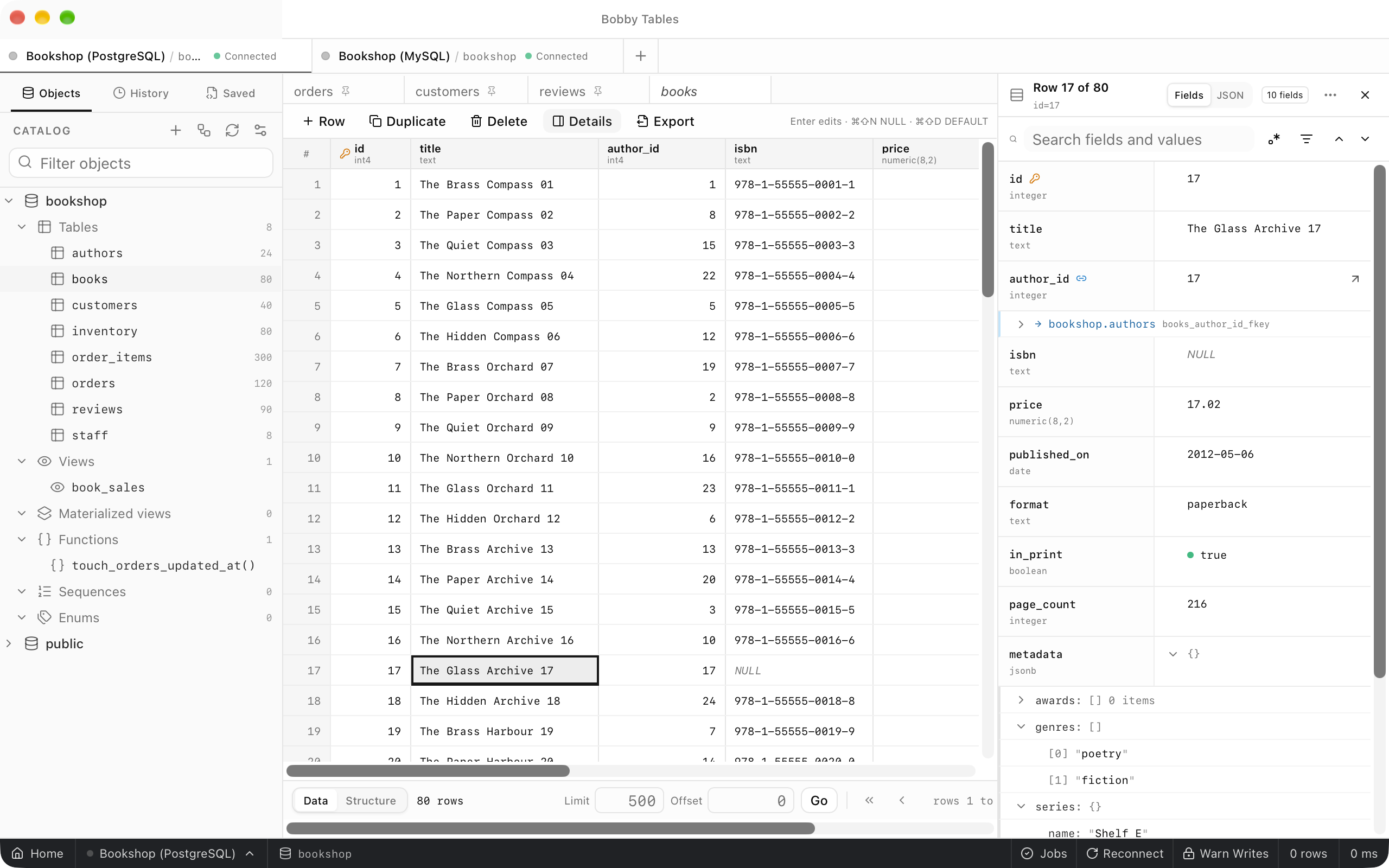
The row inspector opens the selected table row beside the grid as a tree of its values. Search inside it, follow foreign keys without leaving it, or edit the row as a JSON document.
Where to find it
| Action | How |
|---|---|
| Open or close the inspector | Space on a row in a table's data grid, or Details above the grid |
| Previous or next row | ⌘ArrowUp (Ctrl+ArrowUp) and ⌘ArrowDown (Ctrl+ArrowDown) |
| Search the row | ⌘F (Ctrl+F) with focus in the panel |
| Next or previous match | ⌘G (Ctrl+G) and ⌘⇧G (Ctrl+Shift+G) |
| Copy the focused value | ⌘C (Ctrl+C) |
| Copy the focused subtree as JSON | ⌘⇧C (Ctrl+Shift+C) |
| Switch between fields and JSON | Fields and JSON in the panel header, or ⌘⇧J (Ctrl+Shift+J) |
| Apply a JSON draft | Apply, or ⌘Enter (Ctrl+Enter) |
The value tree
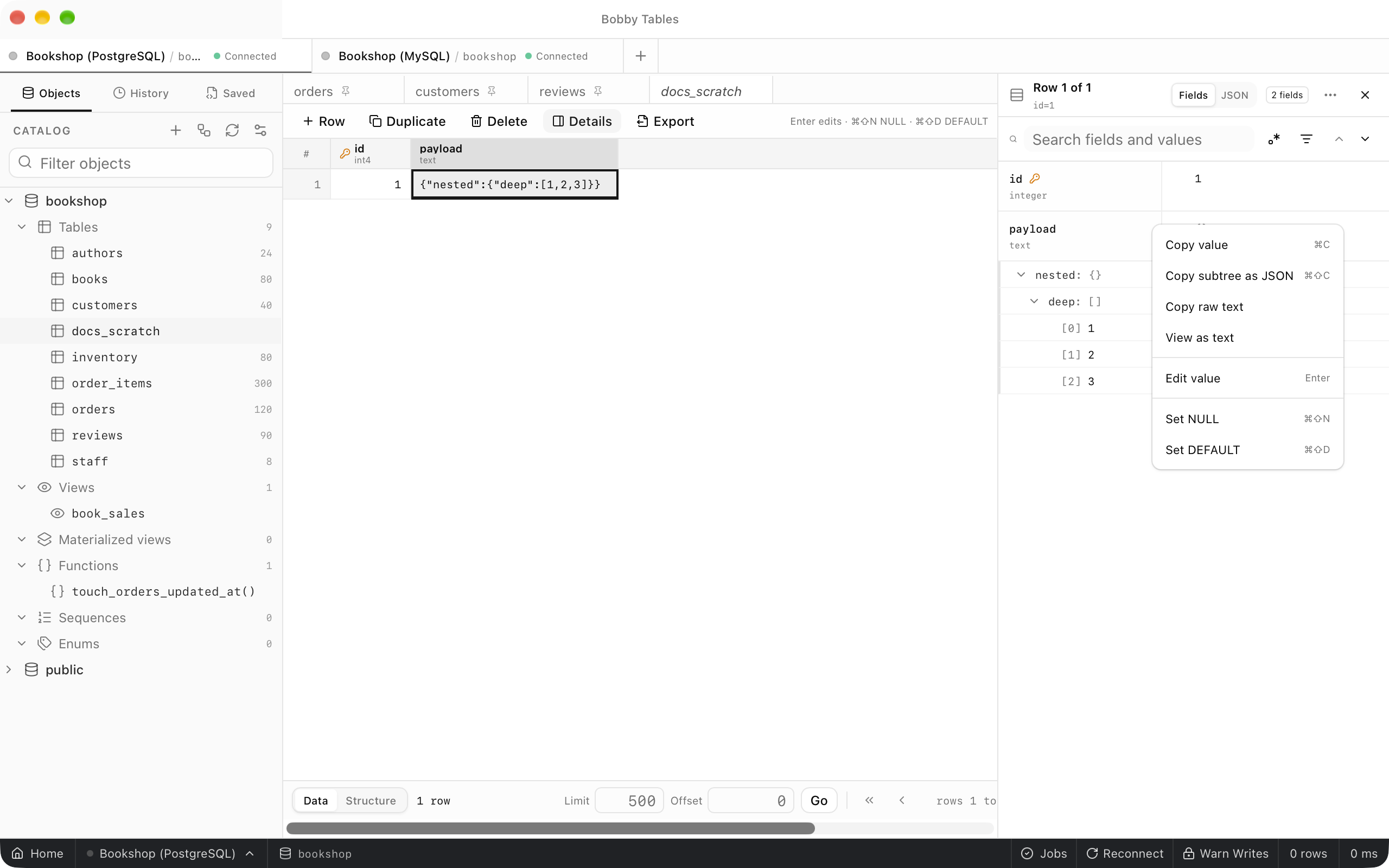
Each column is one row of the tree, with its name and type on the left and its value on the right. A JSON column opens as objects and arrays you expand in place, and a collapsed container shows how many keys or items it holds. NULL is italic and a boolean carries a dot. A text column that holds a JSON object or array also opens as a tree, and its context menu offers View as text and Copy raw text.
Search
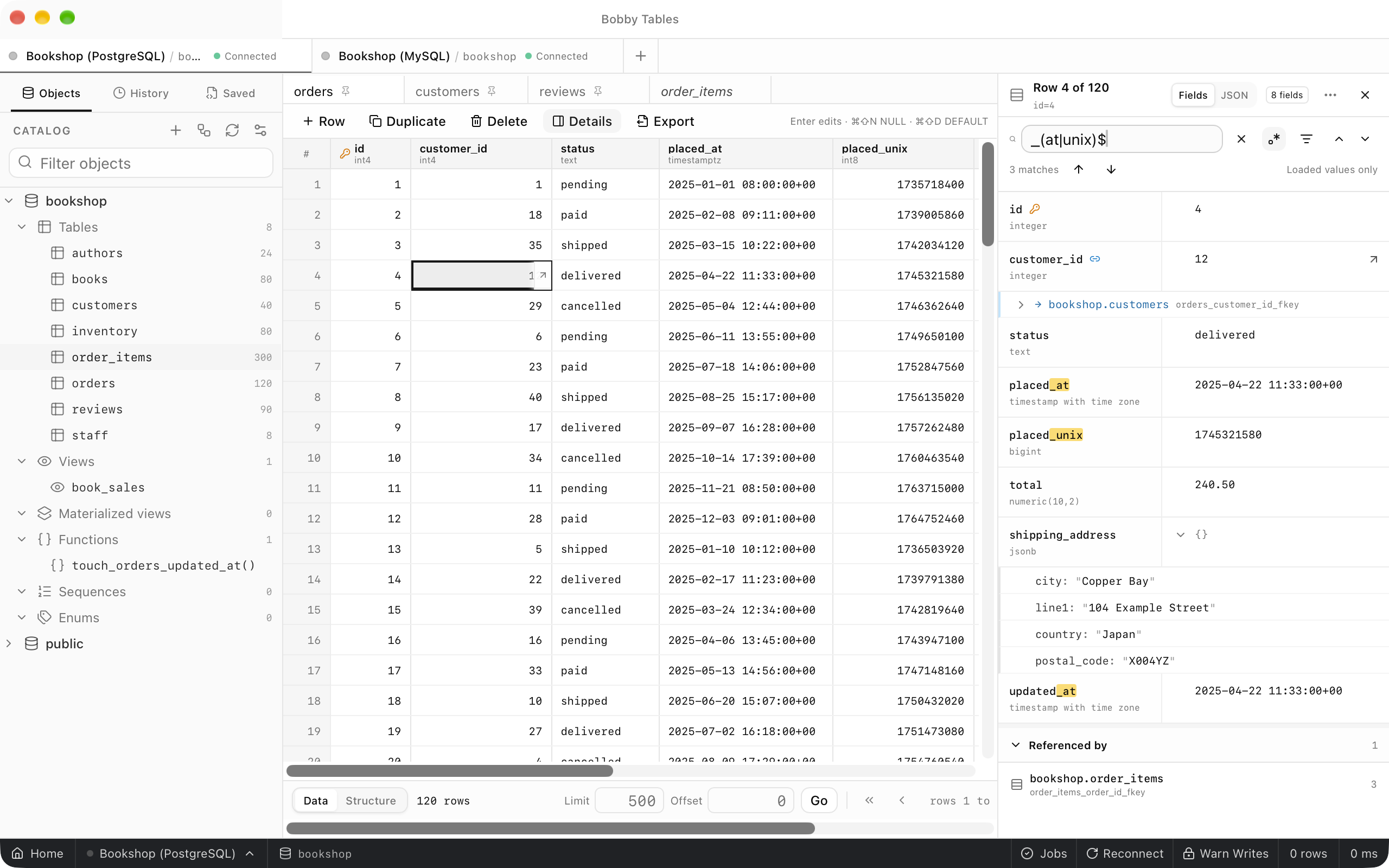
Press ⌘F in the panel to search column names, JSON keys and values together. Matches are highlighted, and the count reads 3 matches until you step with Enter, then 1 of 3. Show matches only hides every field that does not match, so a narrowed object reads, for example, 3 of 4 keys. Regular expression reads the query as a pattern.
Foreign keys
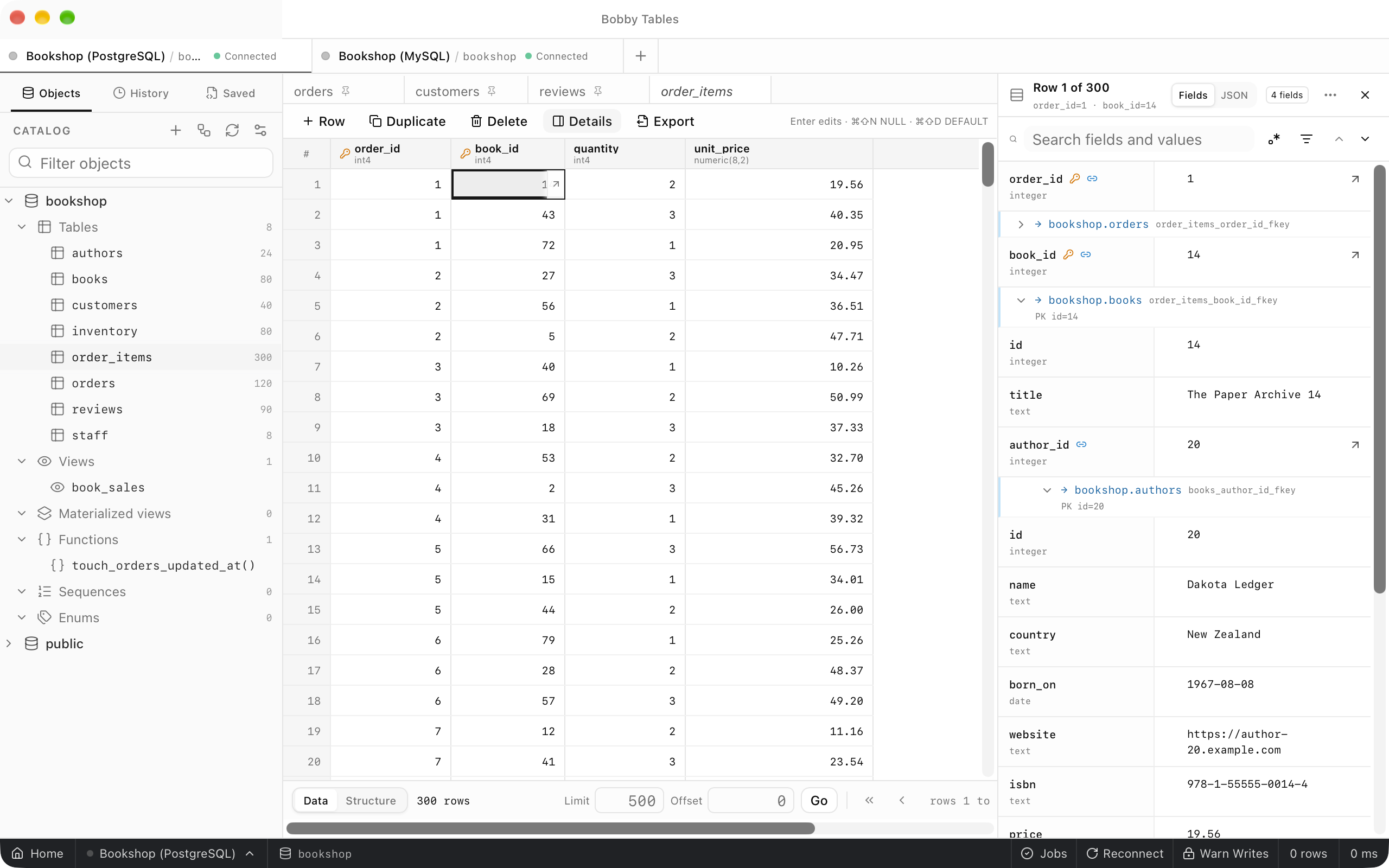
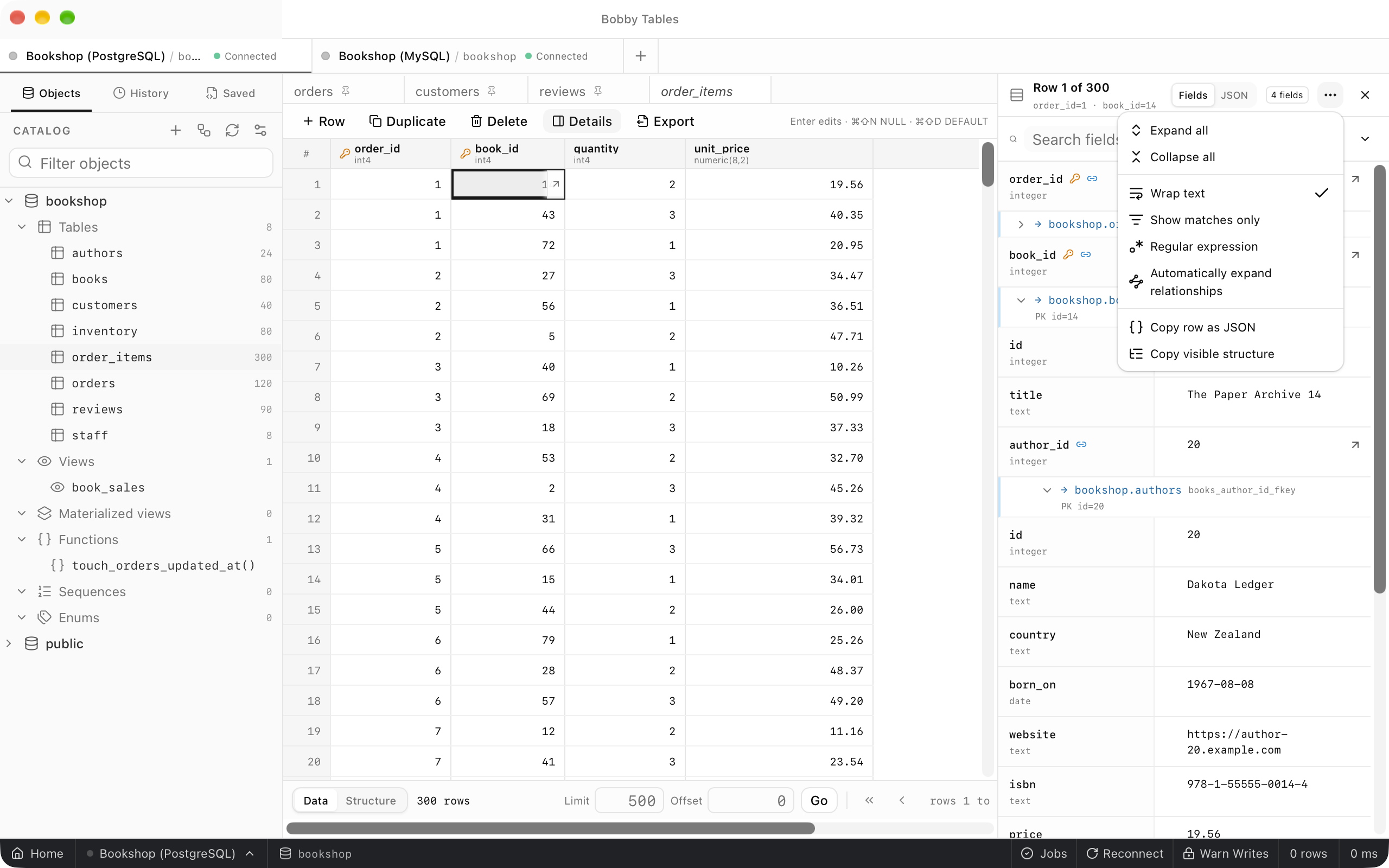
A foreign key field lists the table it points to, such as → bookshop.books, under its value. Expand it to load the referenced row in place, with its own fields and keys. Expand a key inside that row to follow the chain further, so order_items, books and authors read as one panel. A table that other rows point to lists them under Referenced by.
Copying and wrapping
The … menu in the panel header holds Expand all, Collapse all, Wrap text, Show matches only, Regular expression and Automatically expand relationships. Copy row as JSON copies the row, and Copy visible structure copies what the panel shows, related rows included.
JSON view
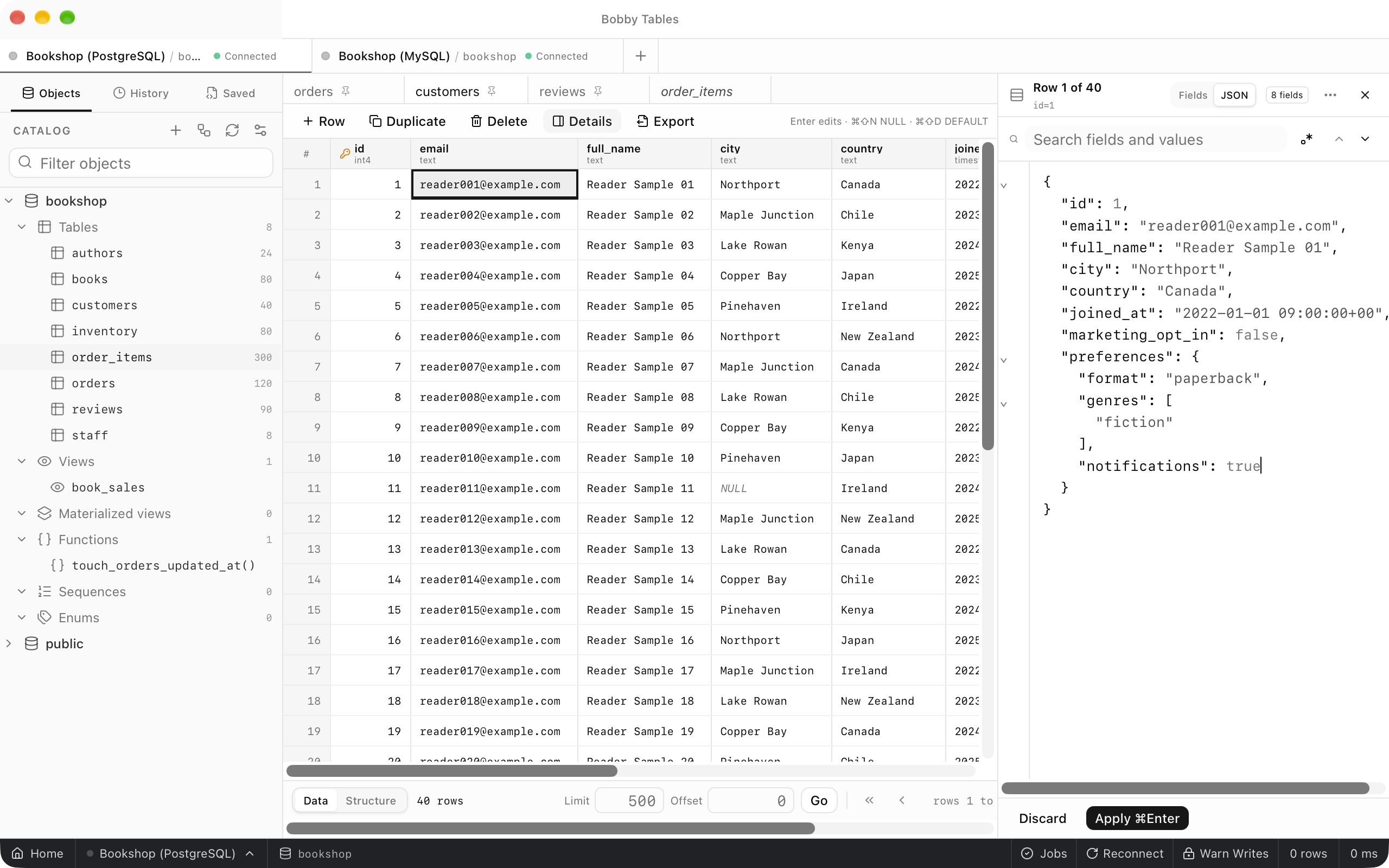
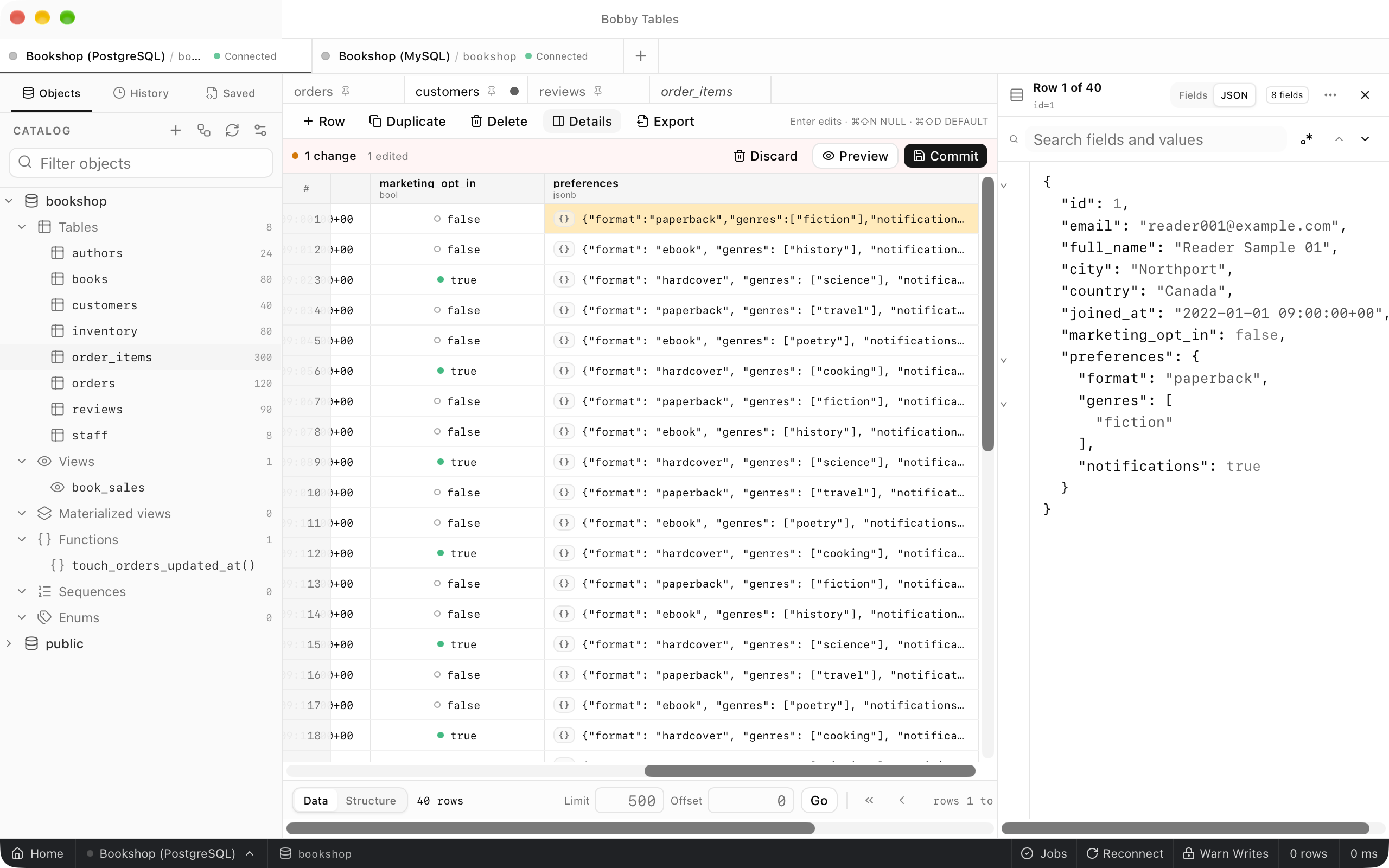
Choose JSON in the panel header to see the row as one JSON document in an editor. Change values, then choose Apply or press ⌘Enter. Each changed column becomes a pending edit in the grid, and nothing reaches the database until you commit. Discard drops the draft.
Good to know
- The inspector is part of a table's
Dataview. Query results use Quick Look instead. - Referenced rows are read-only in the panel.
- The view and the menu switches are remembered, but the search text is not.
- Pending edits from the JSON view are committed like any other edit. See Editing rows.