Query
Results grid
A query result opens in a grid under the editor. The rows stay in the app's native layer and reach the window in pages, so a large result does not stall the interface.
Where to find it
| Action | How |
|---|---|
| Read a result | The results pane under the editor |
| Switch between result sets | Result 1, Result 2 and so on, above the grid |
| See one value in full | Space, or Quick Look in the context menu |
| Copy cells | Copy, Copy cell value, Copy column values and Copy as in the context menu |
| Export | Export result... above the grid, or Export selection... in the context menu |
| Cancel a running query | Cancel, ⌘. (Ctrl+.) |
Reading the grid
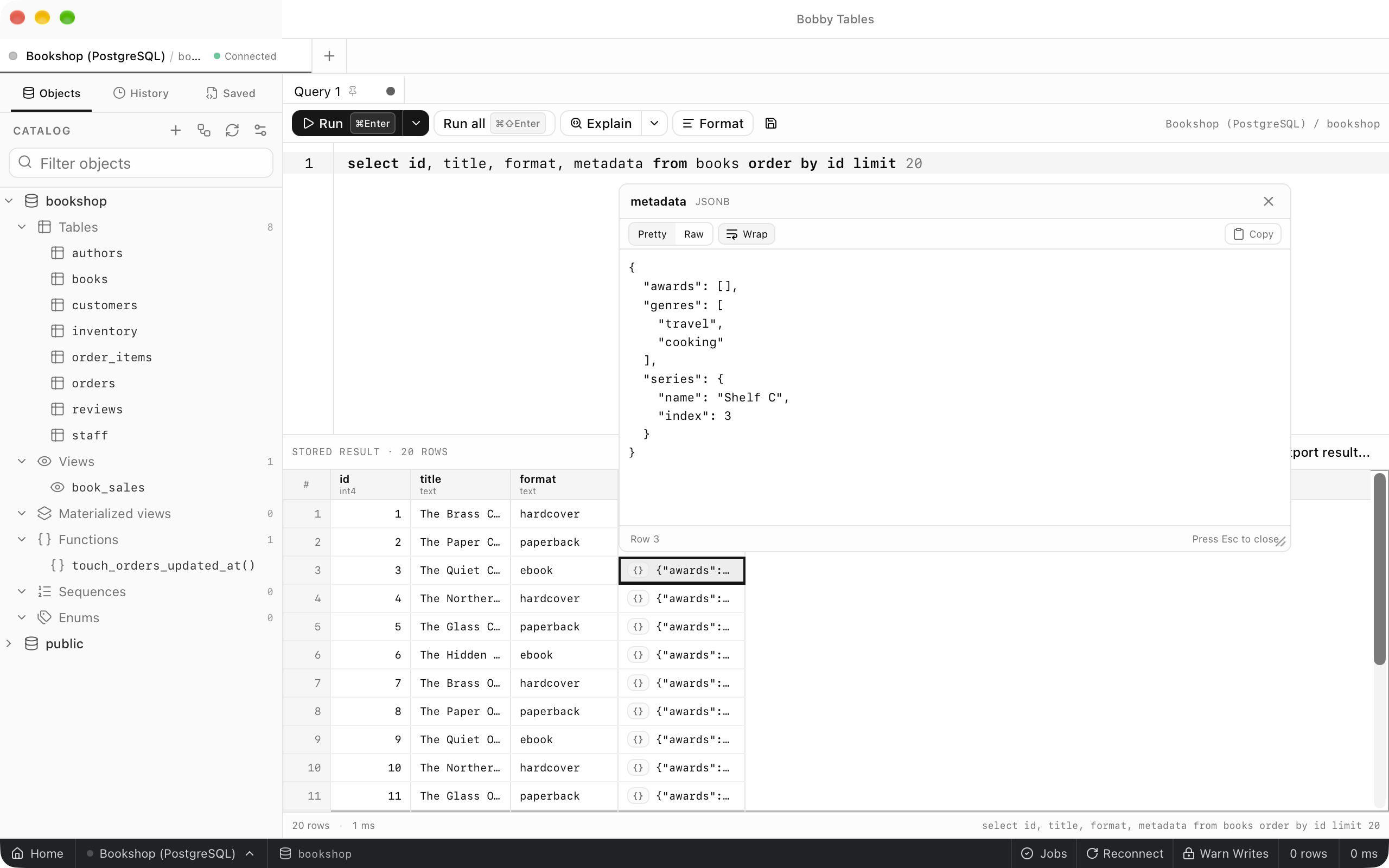
Each heading shows the column name with its database type beneath it. NULL appears as an italic NULL, never as an empty cell, and a JSON value carries a {} badge. The strip above the grid counts the stored rows, and the footer shows the row count, the time taken and the statement.
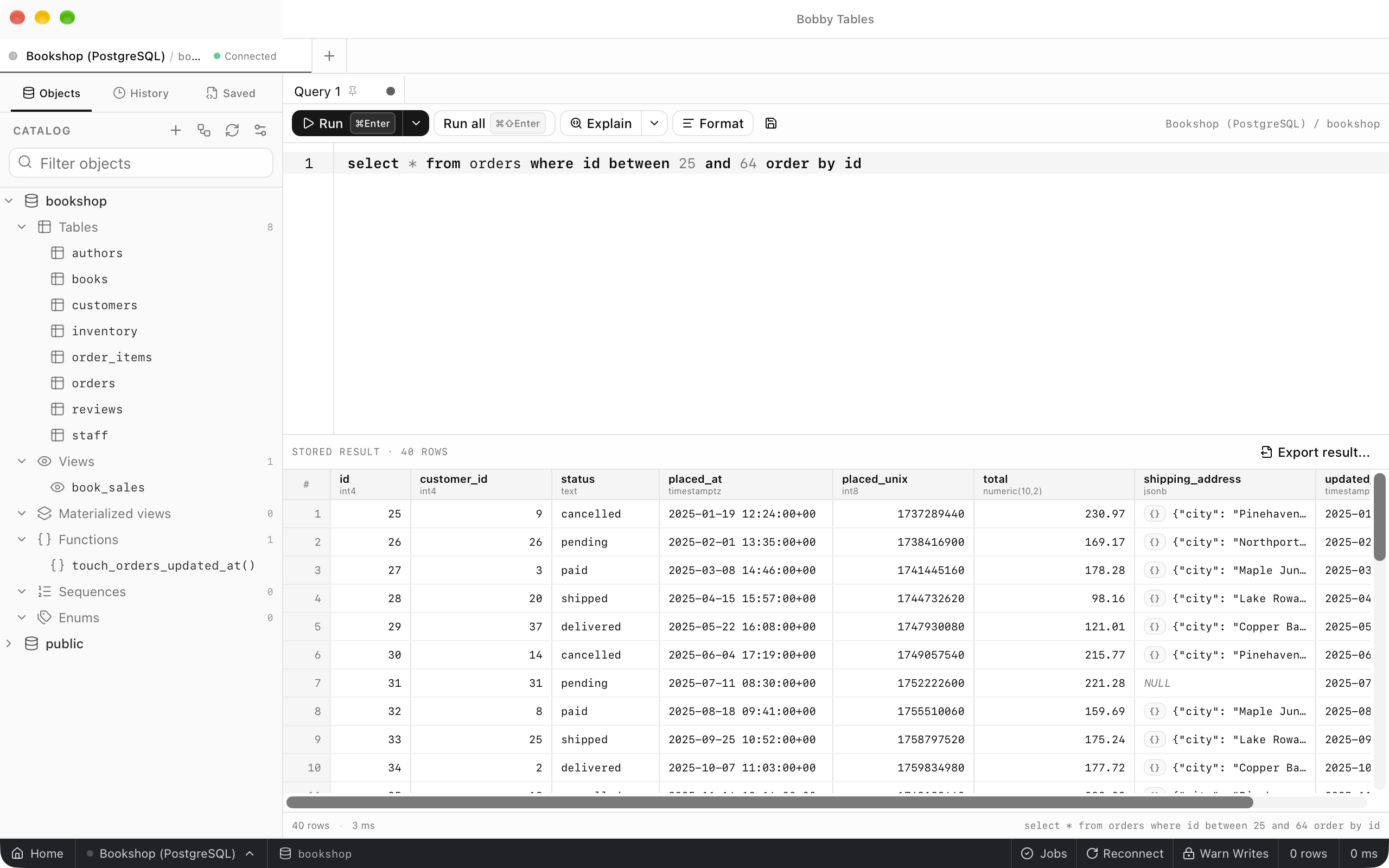
Paging and large results
Rows reach the window 500 at a time as you scroll. A query collects at most 100,000 rows or 256 MB of values, whichever comes first, and Maximum rows per query and Maximum result memory in Preferences > Data change both limits. When a result reaches a limit, a banner says the query was stopped early, and the footer count gains a + and a truncated badge.
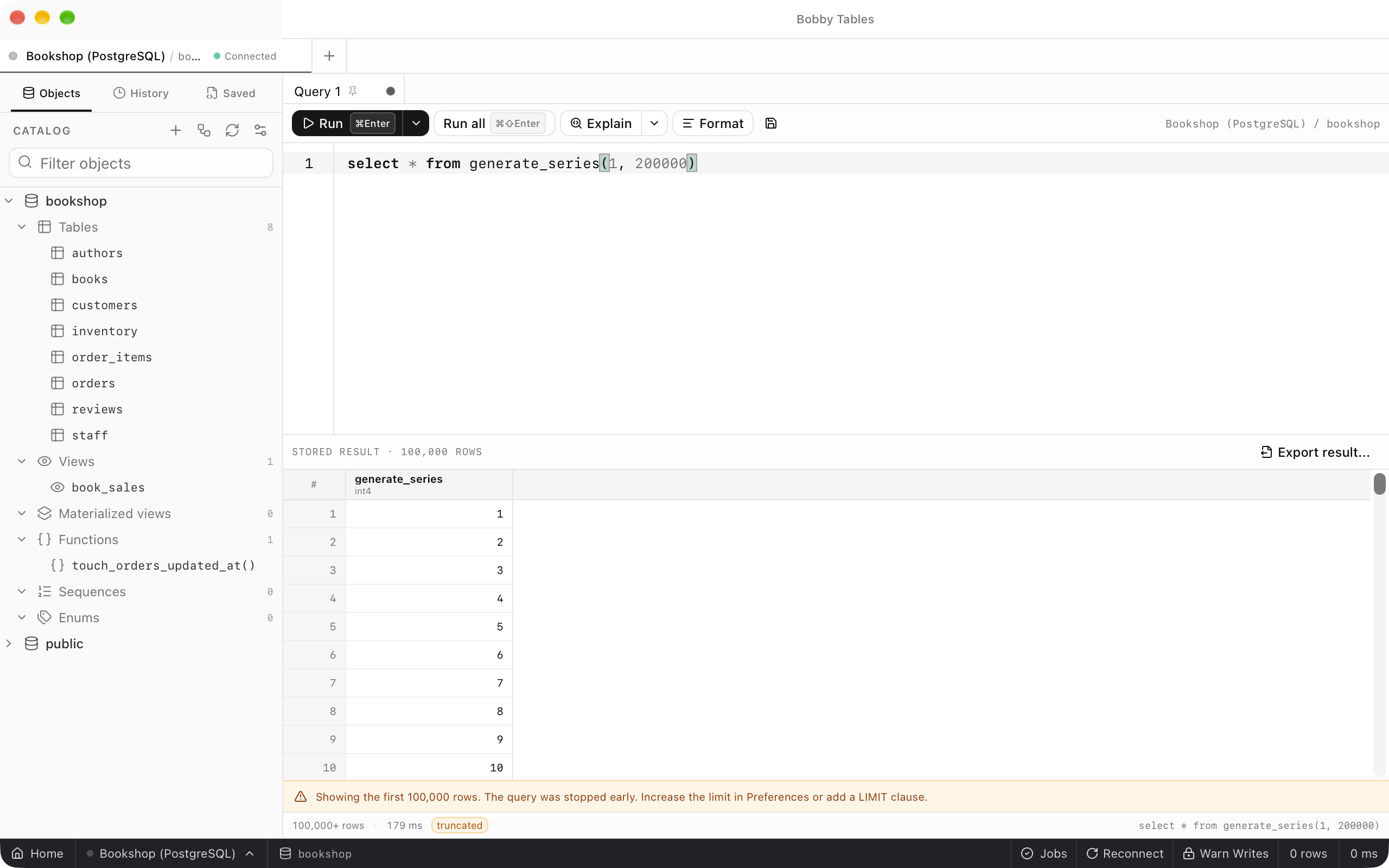
Several result sets
Run all gives each statement that returns rows its own tab, named Result 1, Result 2 and so on, and opens the last one. Select a tab to show its rows, column types and footer.
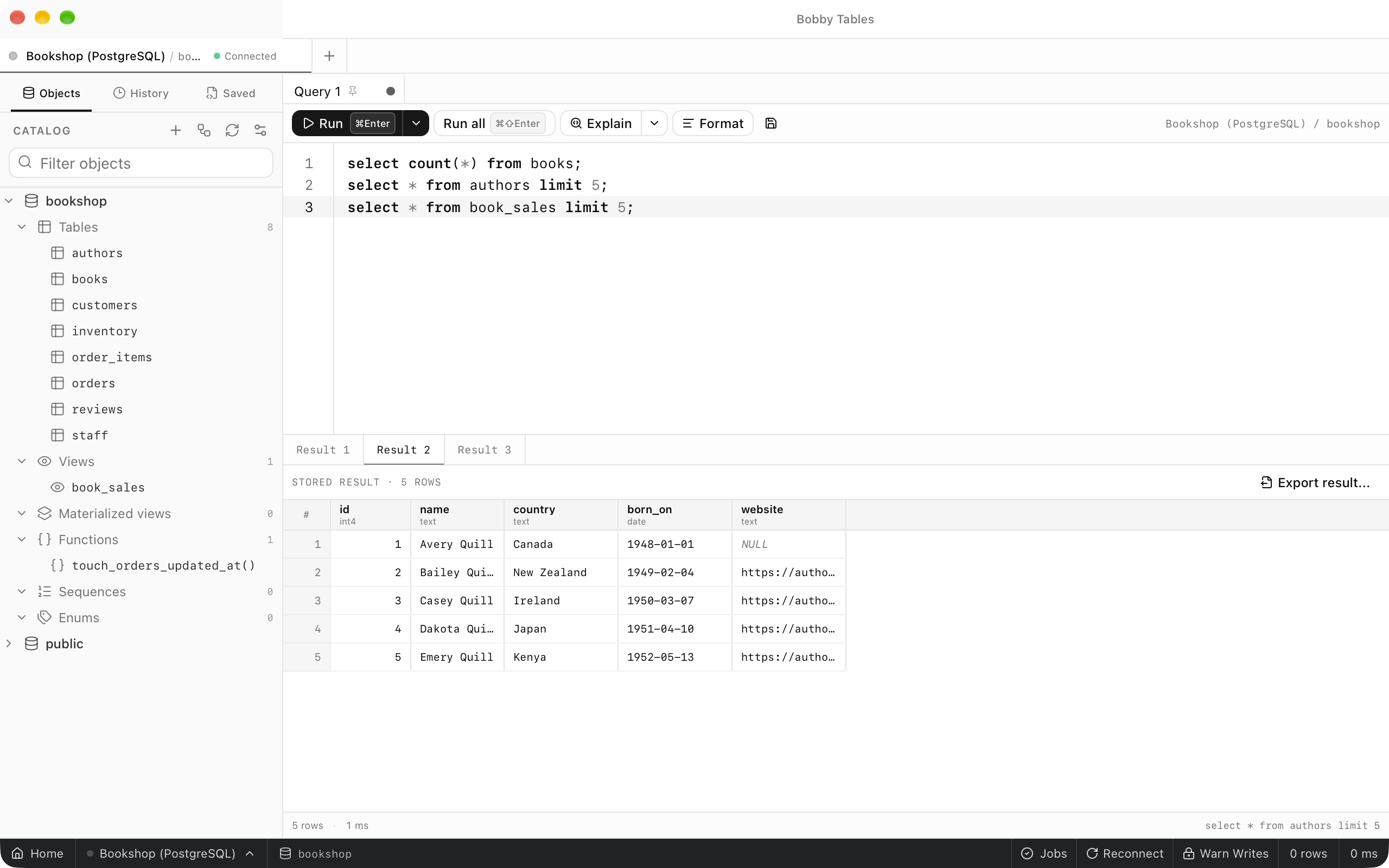
Copying
Right-click a selection for Copy, Copy cell value, Copy column values and Copy as. Copy as offers TSV, CSV, CSV with header, JSON and Markdown table, and SQL INSERT stays disabled in query results. Copies carry the values the database returned, not the way a cell is drawn.
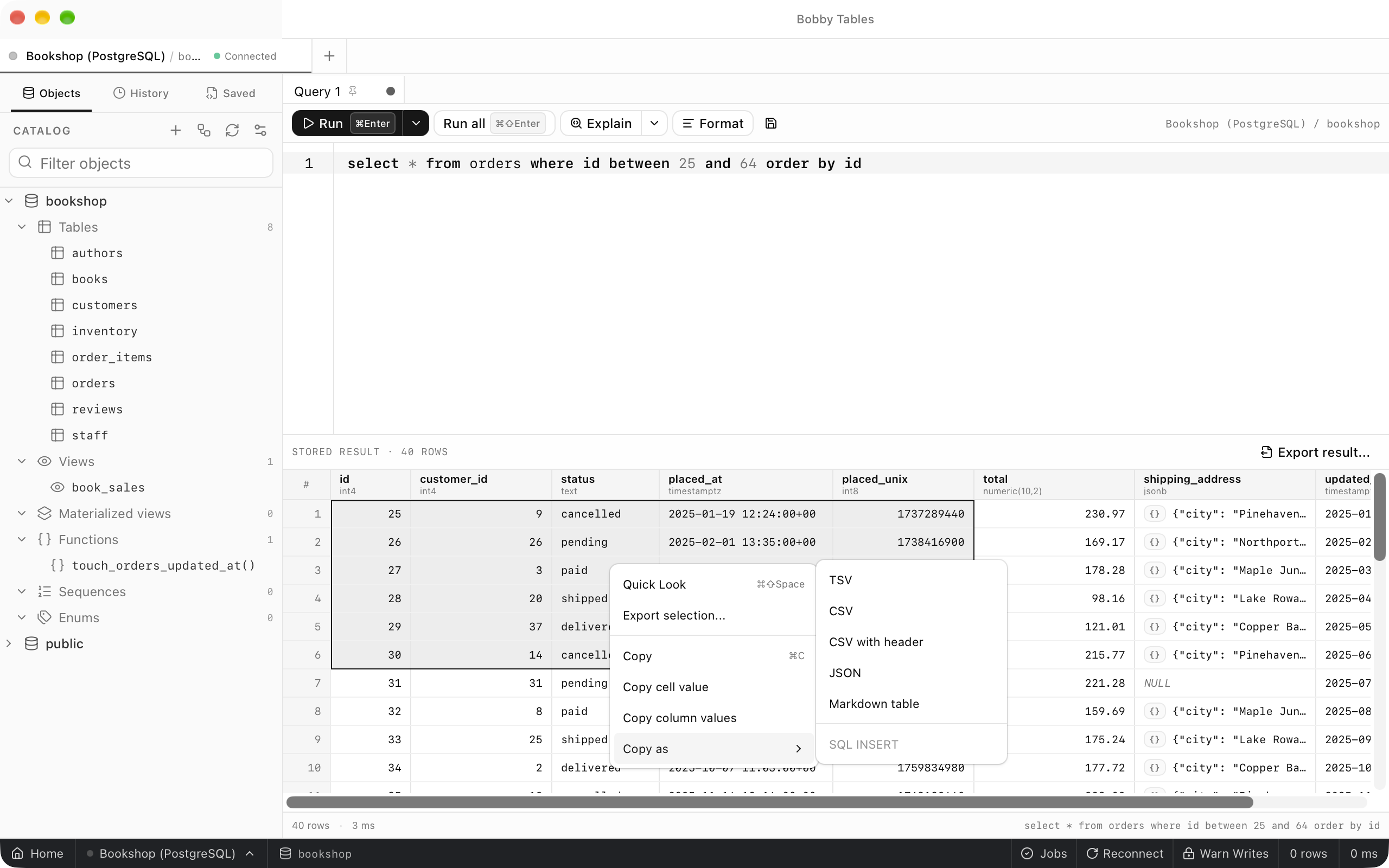
Quick Look
Space on the selected cell, or Quick Look in the context menu, opens the cell's full value with its column name and type. JSON opens formatted, with Pretty and Raw to switch between layouts, and Wrap and Copy above the value. Esc closes it. In table data, the row inspector shows a whole row at once.
Good to know
- Dates and times appear as the server sends them.
Export result...writes every stored row, not only the rows on screen. See Export and import.- Running the tab again replaces its results.
- Column aliases can change how a column is drawn without changing what is copied. See Result display directives.