Browse and edit
Sidebar, Open Anything and tabs
The sidebar lists the schemas and objects in the current database, one shortcut opens any object or saved query by name, and two more switch database and connection.
Where to find it
| Action | How |
|---|---|
| Open anything | ⌘P (Ctrl+P) |
| Switch database | ⌘K (Ctrl+K) |
| Switch connection | ⌘⇧K (Ctrl+Shift+K), or File > New Workspace… |
| Go to a tab | ⌘1 to ⌘9 (Ctrl+1 to Ctrl+9), where 9 is the last tab |
| Previous or next tab | ⌘[ or ⌘] (Ctrl+[ or Ctrl+]) |
| Close tab | ⌘W (Ctrl+W), or File > Close Tab |
| Hide or show the sidebar | ⌘⌃S (Ctrl+Alt+S), or View > Toggle Sidebar |
| Refresh the catalog | Refresh catalog at the top of the sidebar |
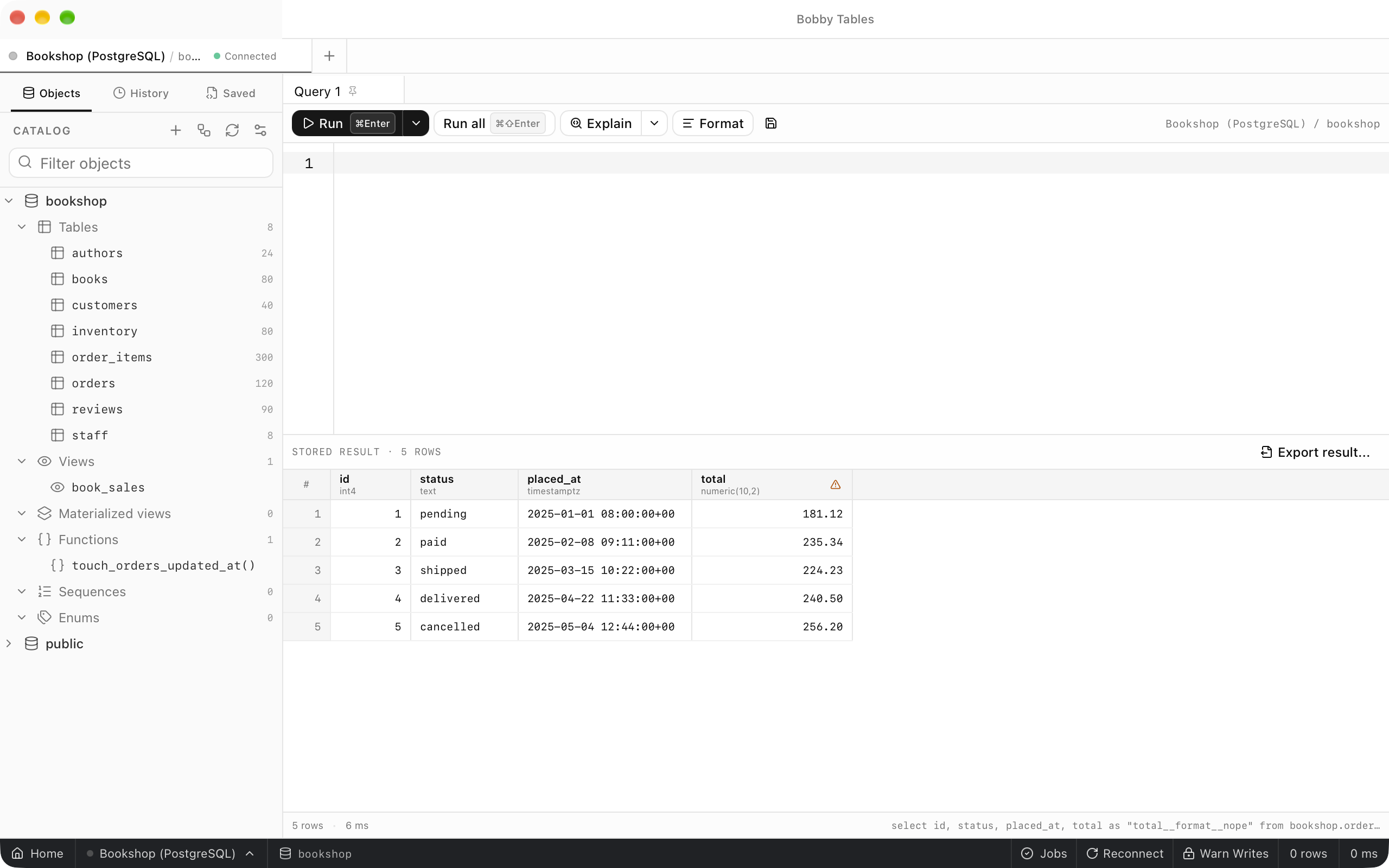
The sidebar has three tabs: Objects, History and Saved.
The sidebar
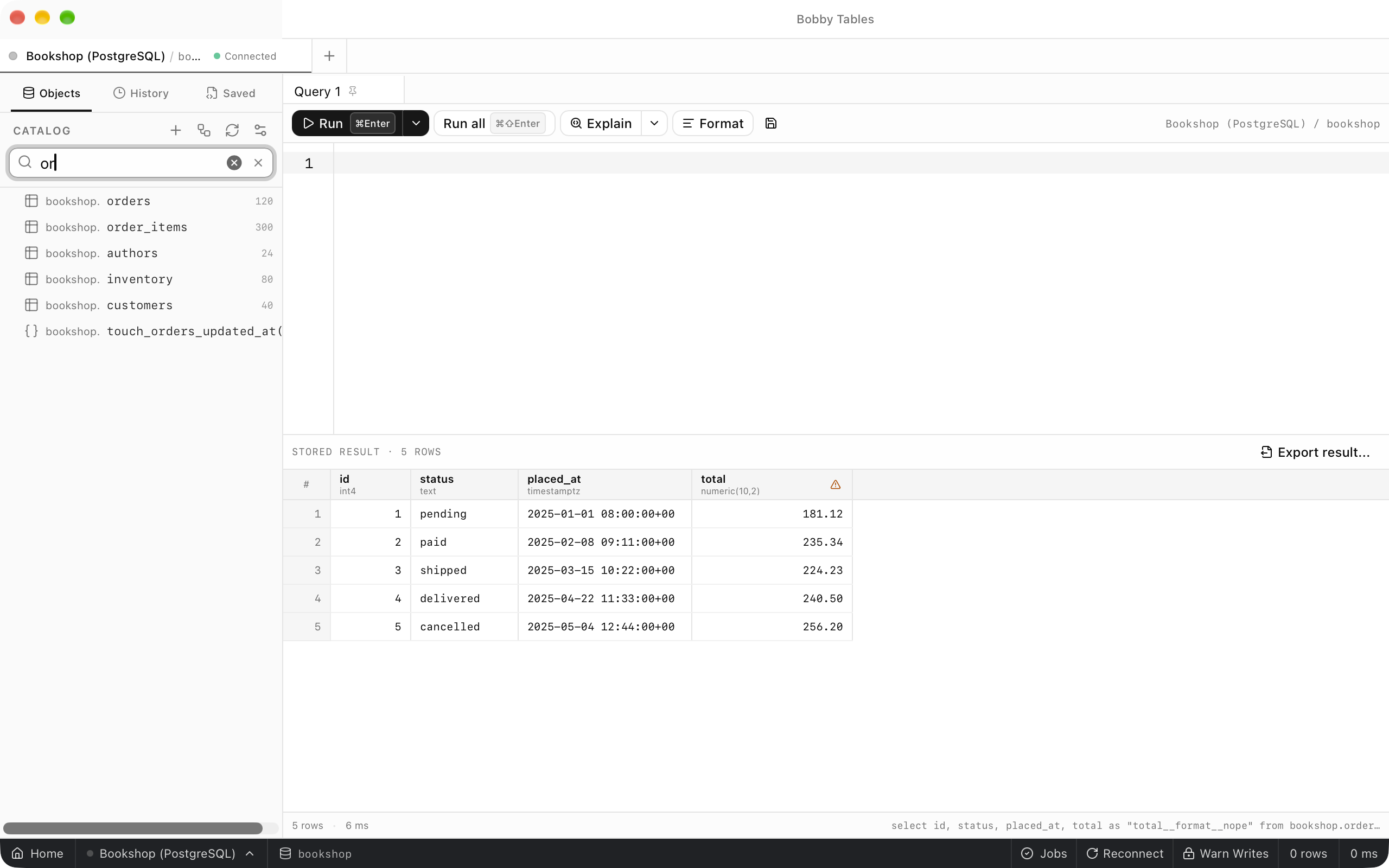
Objects lists each schema with groups for Tables, Views, Materialized views, Functions, Sequences and Enums, and each group shows how many objects it holds. Show row estimates under Catalog display settings adds the server's row estimate beside each table. Typing in Filter objects turns the tree into a flat list of matching objects, each prefixed with its schema. Right-click a table for Open in New Tab, Open Structure, Copy Qualified Name and Refresh.
Open Anything
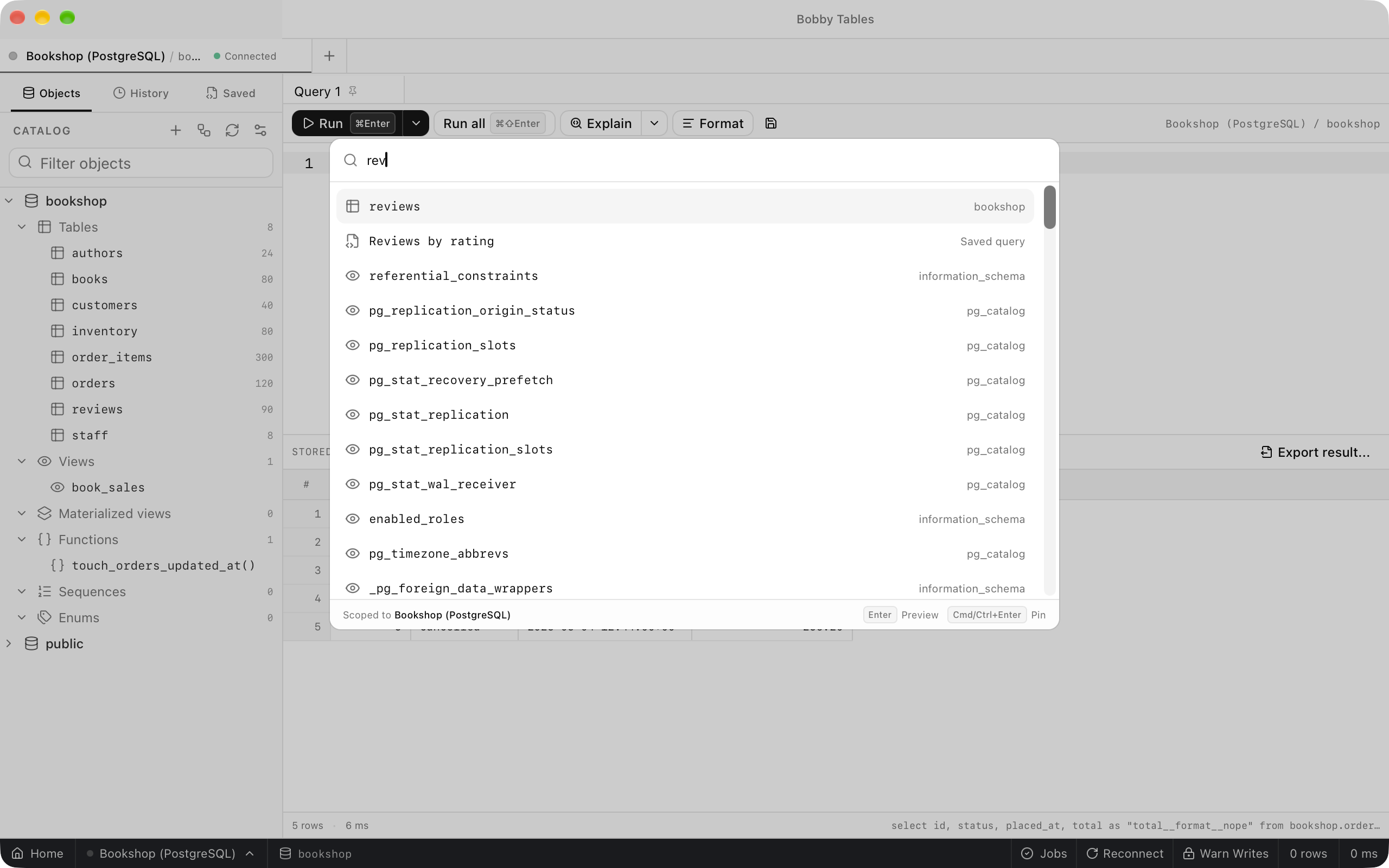
⌘P (Ctrl+P) opens Open anything, which searches the tables, views, functions and saved queries of the current connection. The right column shows an object's schema, or Saved query for a saved query. Enter opens the result in a preview tab and Cmd/Ctrl+Enter opens it pinned. The list also offers Backups… and Create snapshot….
Switching database and connection
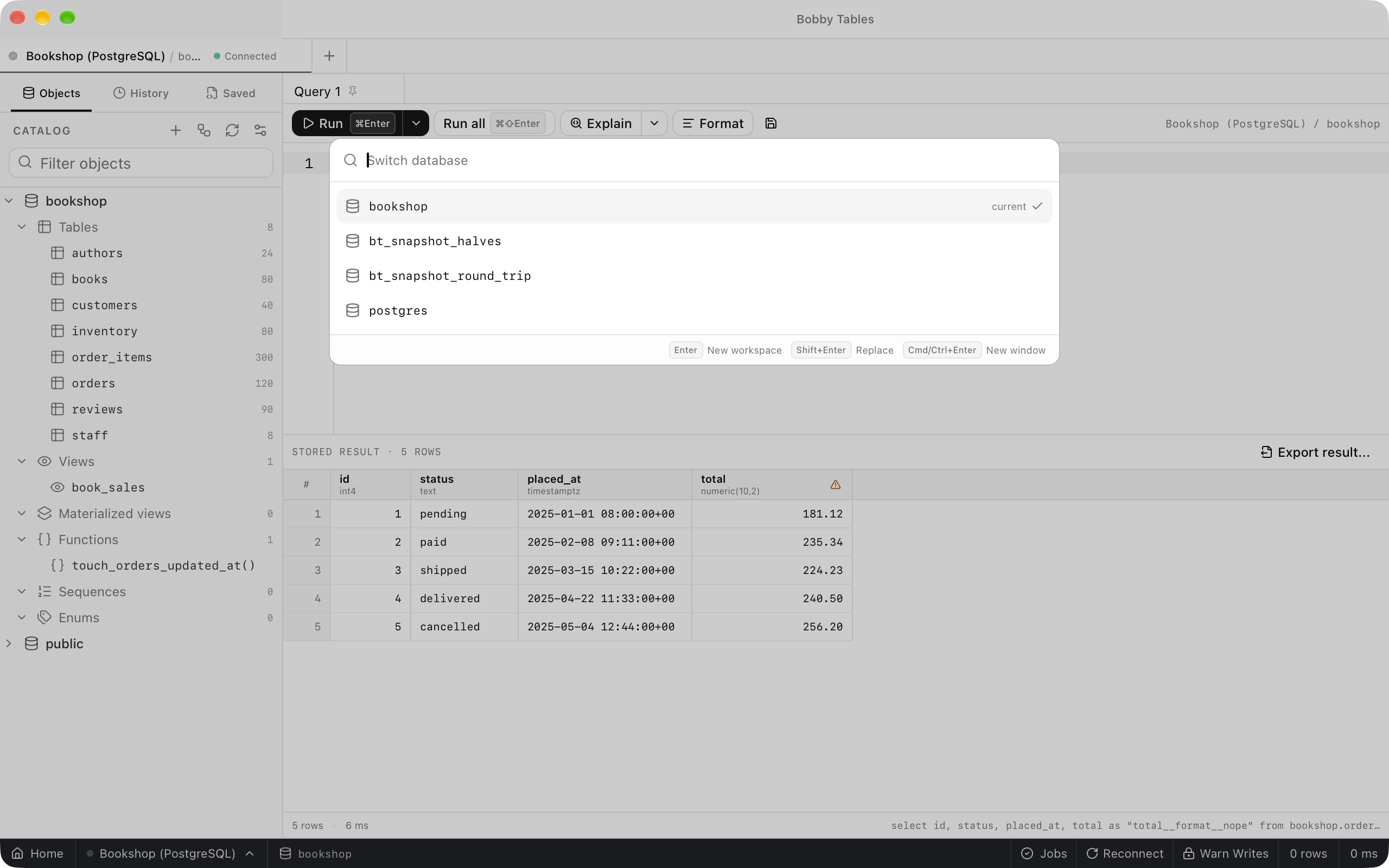
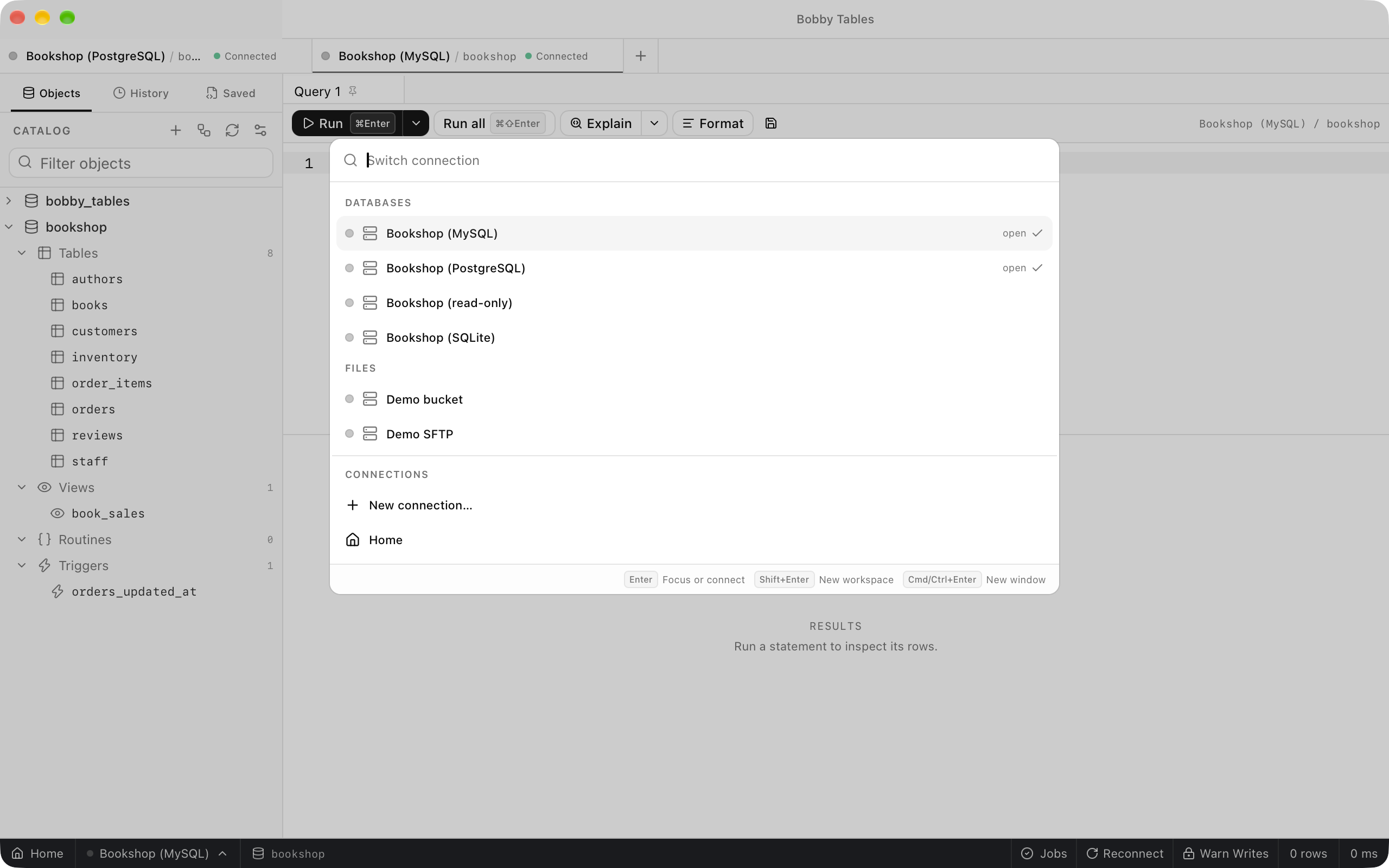
⌘K (Ctrl+K) opens Switch database, which lists the databases on the server and marks the current one. Enter opens the choice in a new workspace, Shift+Enter replaces the current one, and Cmd/Ctrl+Enter opens a new window. ⌘⇧K (Ctrl+Shift+K) opens Switch connection, which lists saved connections by group and marks those with a workspace as open. Enter focuses that workspace, or connects and asks which database to open.
Tabs
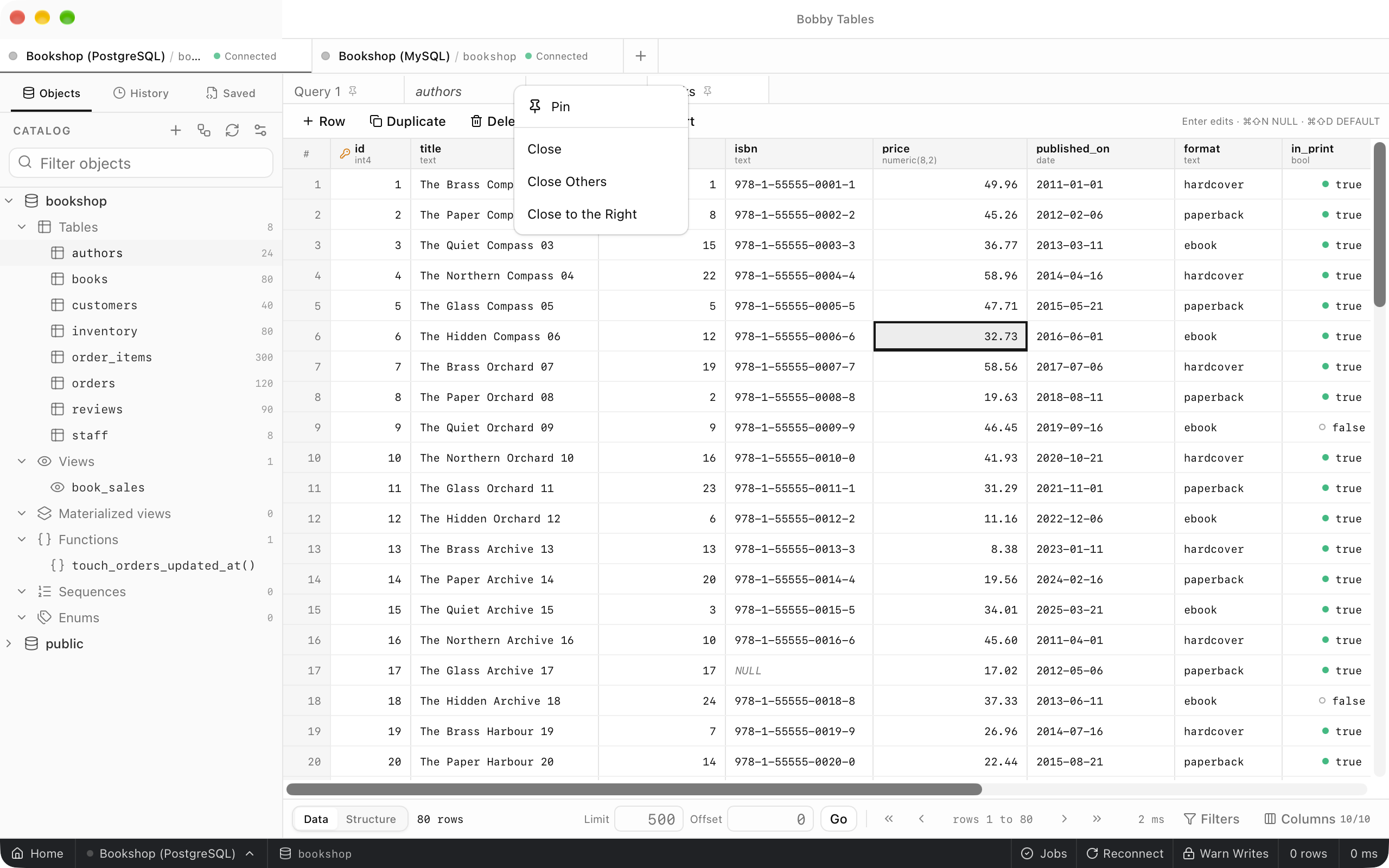
A single click on an object in the sidebar opens it in a preview tab with an italic title, and the next object you open that way replaces it. Open in New Tab opens a pinned tab, which shows a pin icon. Right-click a tab for Pin or Unpin, Close, Close Others and Close to the Right.
Hiding the sidebar
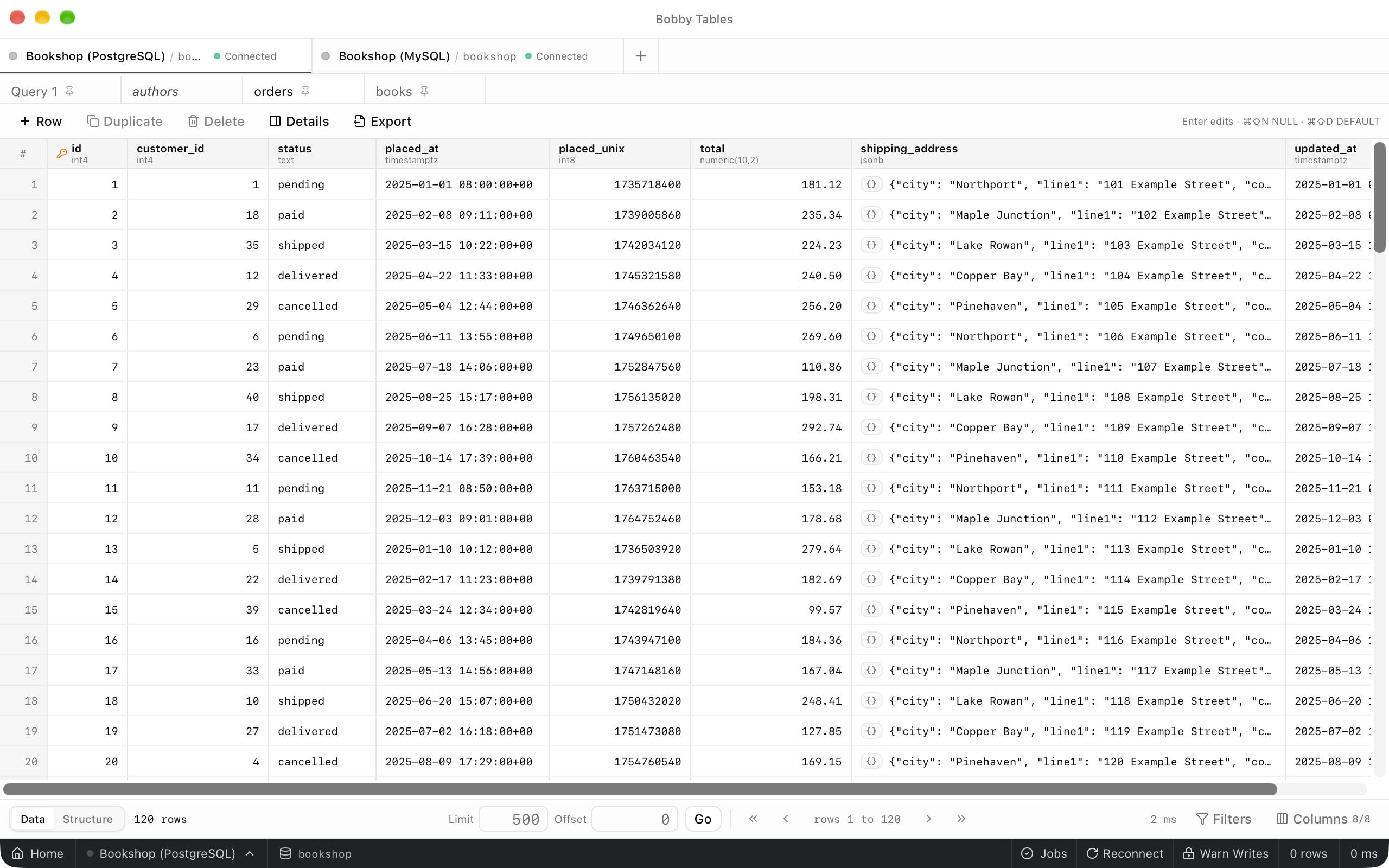
⌘⌃S (Ctrl+Alt+S) hides the sidebar and gives its width to the tabs, and the same shortcut brings it back.
Good to know
- The sidebar and
Open anythingshow the catalog the app has loaded, so chooseRefresh catalogafter creating a table outside Bobby Tables. - On MySQL the sidebar groups each database's objects into
Tables,Views,RoutinesandTriggers. HistoryandSavedare described in SQL editor.- Redis, Cassandra, MongoDB and file connections open their own workspaces without this sidebar.