Browse and edit
Table data
Open any table from the sidebar to page through its rows, sort by a column, filter with a bar that shows the SQL it builds, hide columns and copy what you need.
Where to find it
| Action | How |
|---|---|
| Open a table | Click it in the sidebar, or ⌘P (Ctrl+P) |
| Show the rows | Data below the grid, ⌘⌃[ (Ctrl+Alt+[) |
| Show or hide filters | Filters below the grid, ⌘F (Ctrl+F) |
| Add a filter | Add in the filter bar, ⌘⇧I (Ctrl+Shift+I) |
| Choose columns | Columns below the grid, ⌘⌥F (Ctrl+Alt+F) |
| Read a long value | Right-click a cell, then Quick Look |
| Open the console | ⌘⇧C (Ctrl+Shift+C) |
Grid shortcuts act on the grid that has focus, so click a cell first.
Sorting
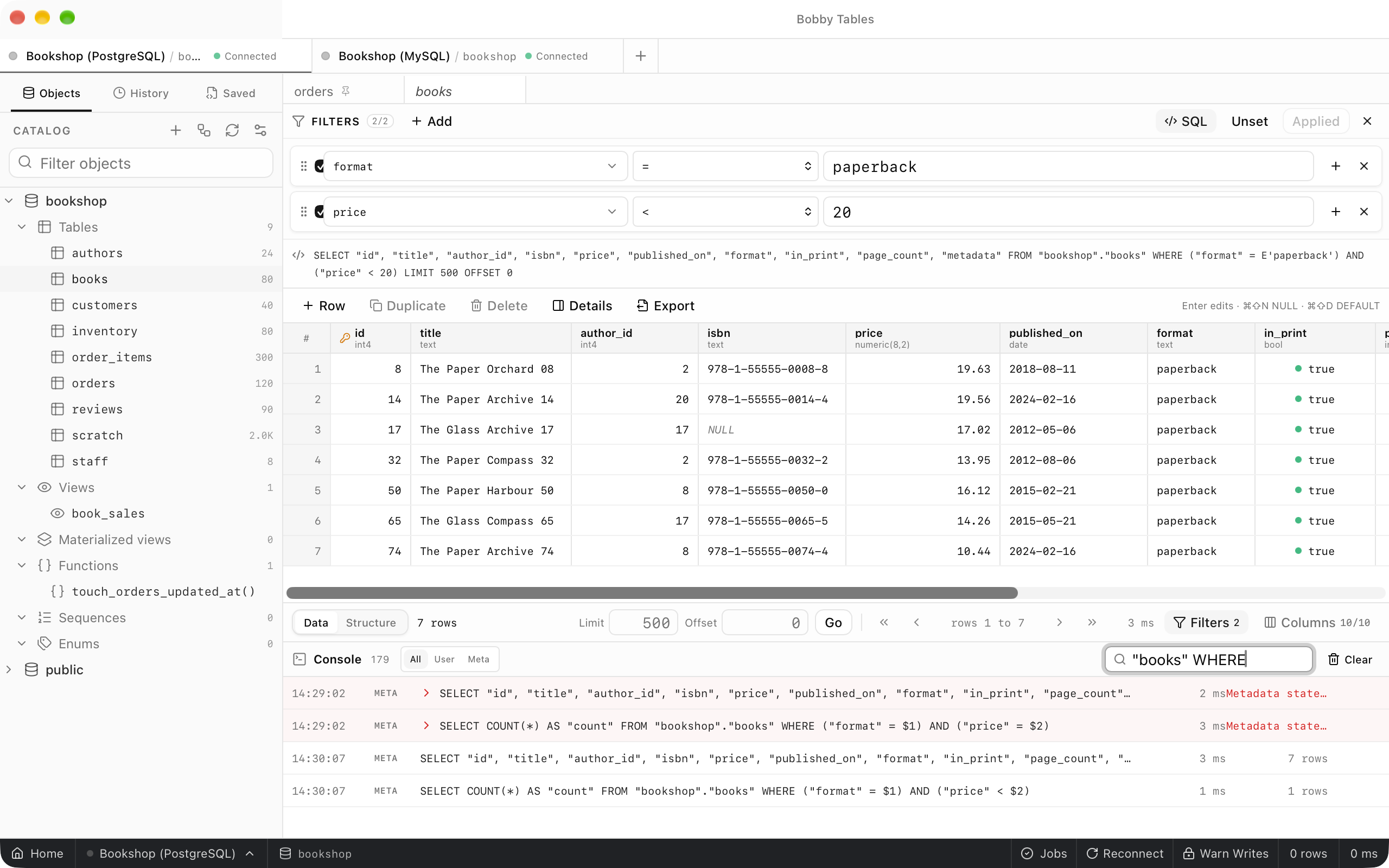
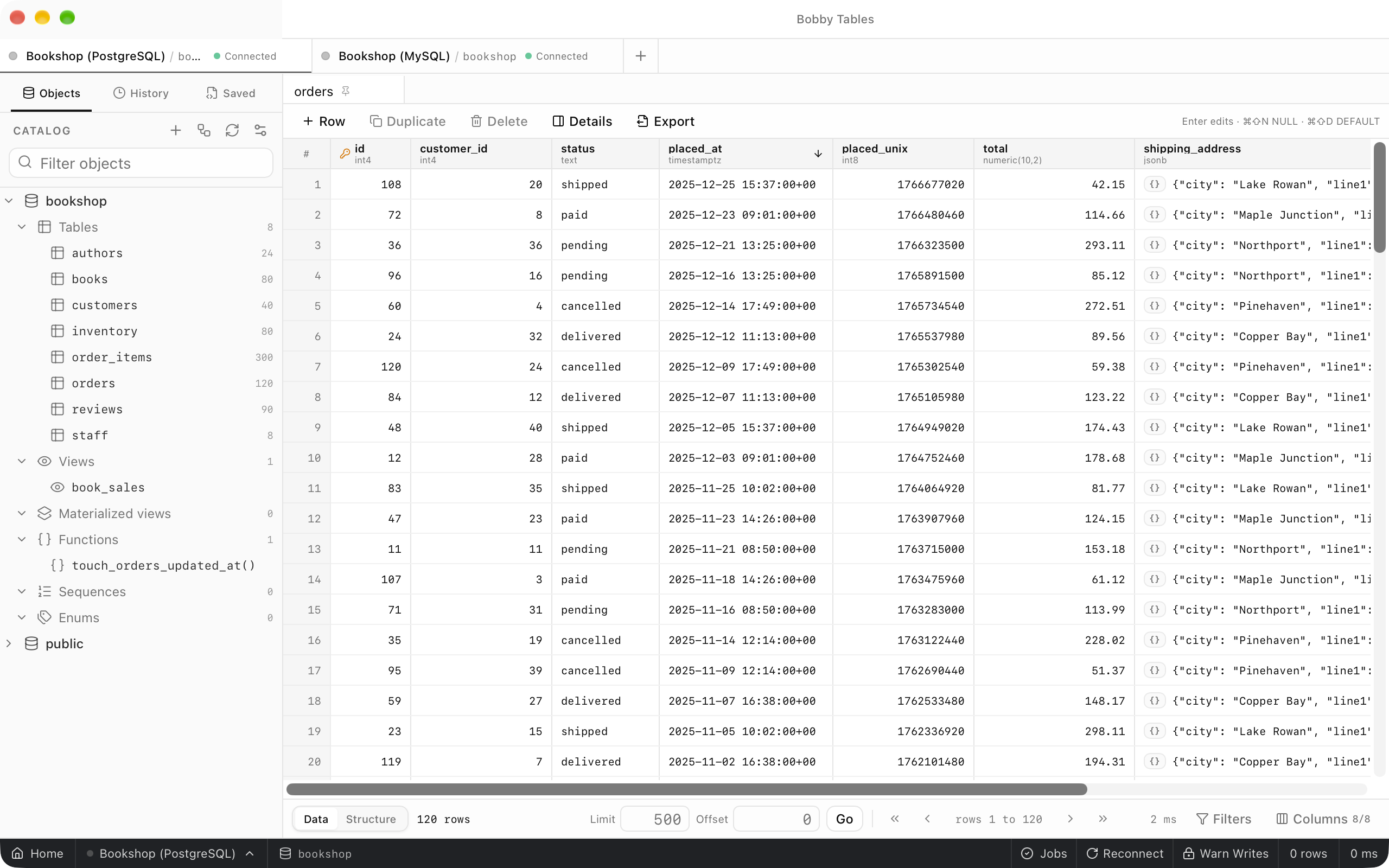
Click a column heading to sort by that column. The first click sorts descending, the second ascending, and the third removes the sort. An arrow in the heading shows the direction, and the database sorts the whole table, not only the rows on screen. The bar below the grid shows the row count.
Paging
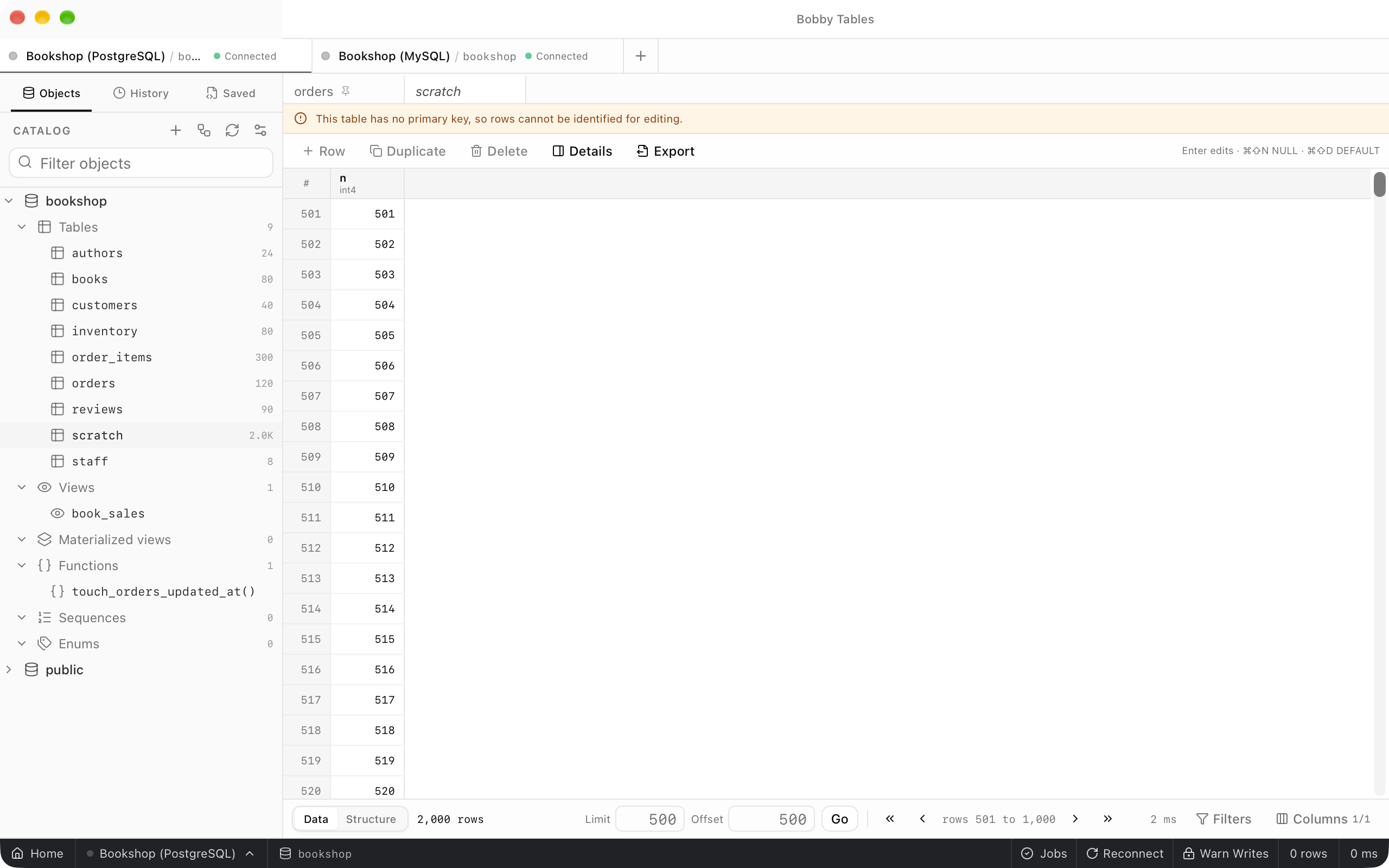
A table opens 500 rows at a time, shown as Limit and Offset in the bar below the grid. Type new values and choose Go, or use the buttons for the first, previous, next and last page. The bar shows which rows are on screen, such as rows 501 to 1,000.
Filters
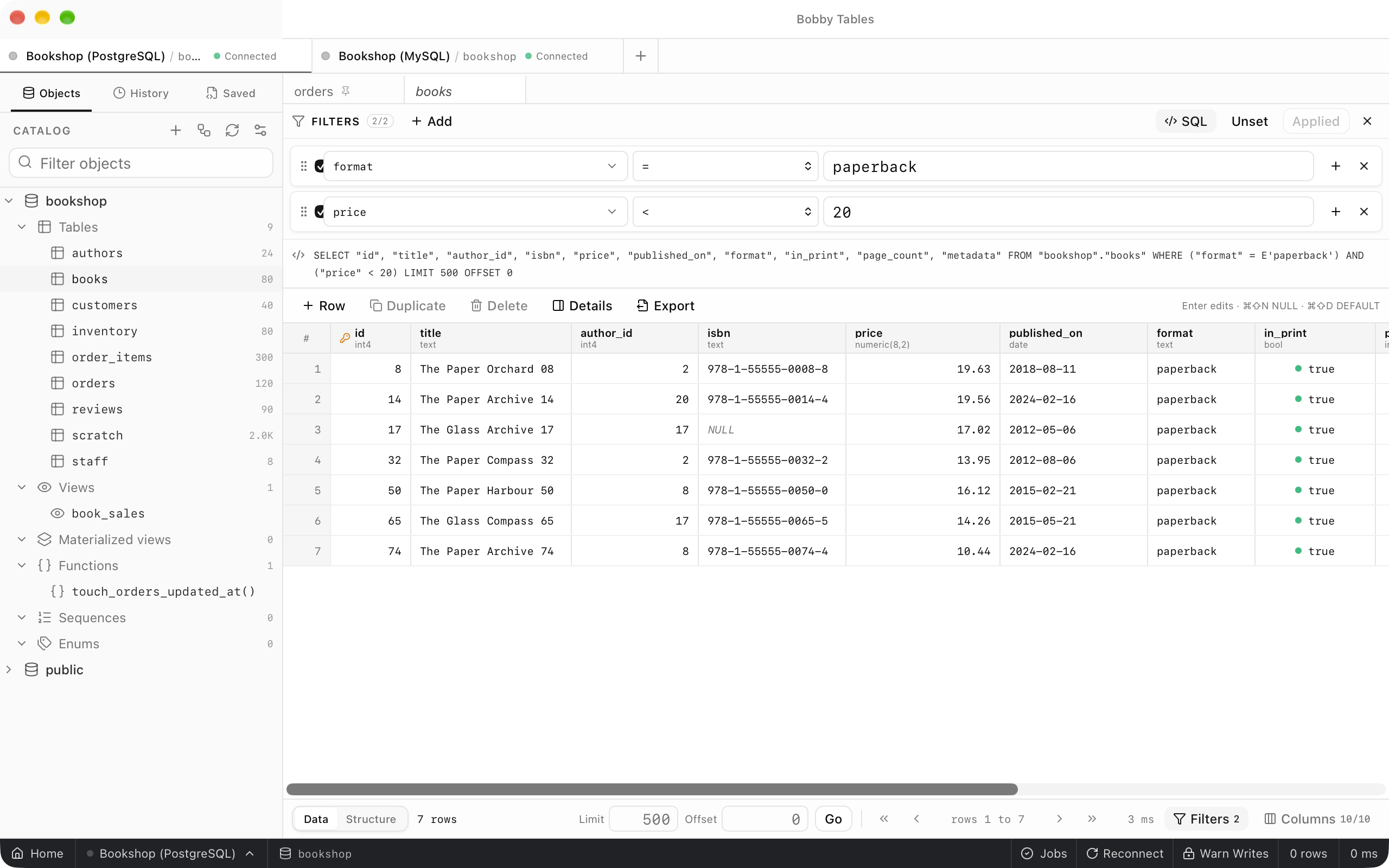
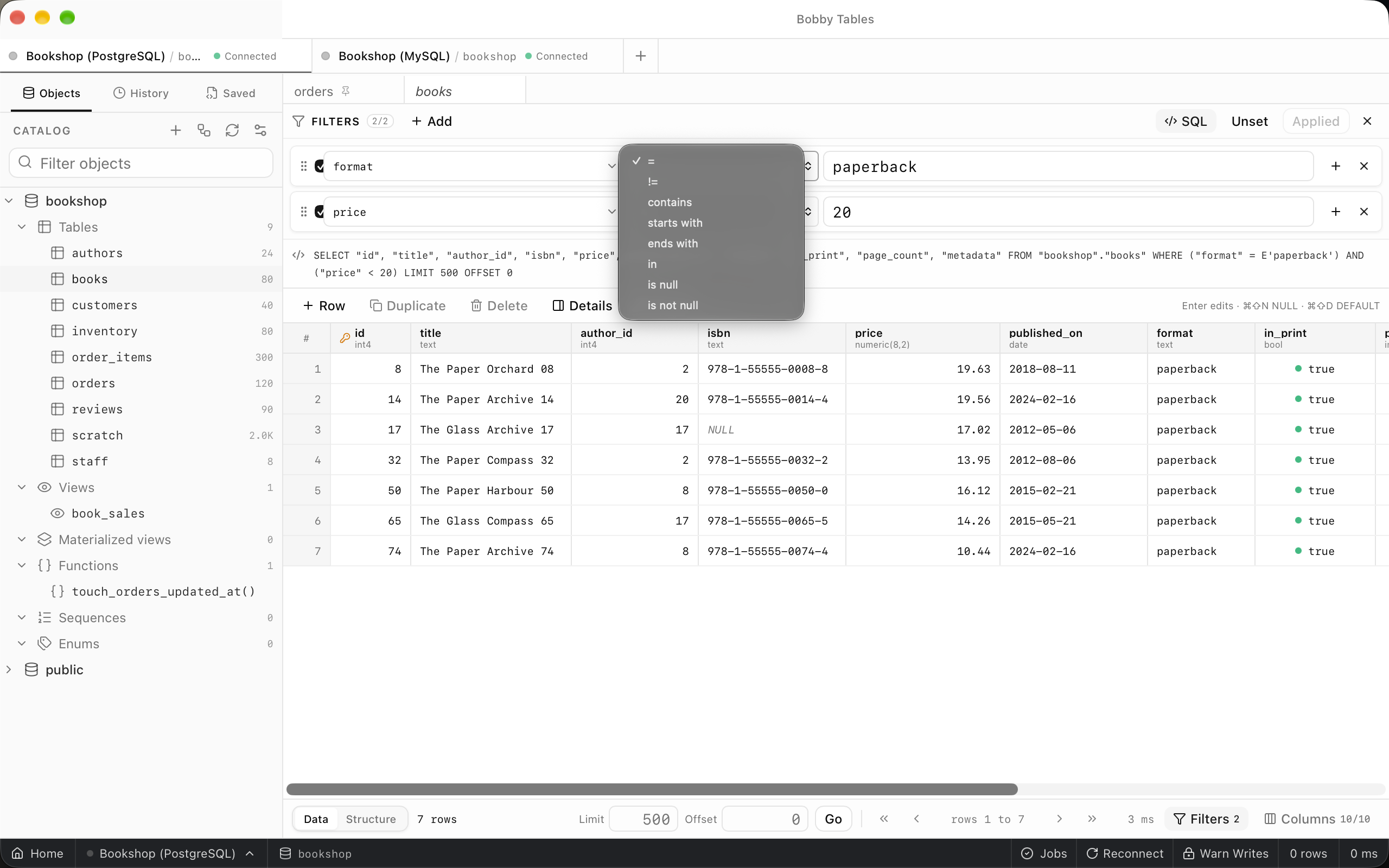
Filters opens a bar above the grid where each row picks a column, an operator and a value, and rows must match every filter. Text columns offer contains, starts with and ends with, while number and date columns offer comparisons and between. SQL shows the statement the filters build, and Apply runs it. Right-clicking a cell offers Filter by value.
Columns and Quick Look
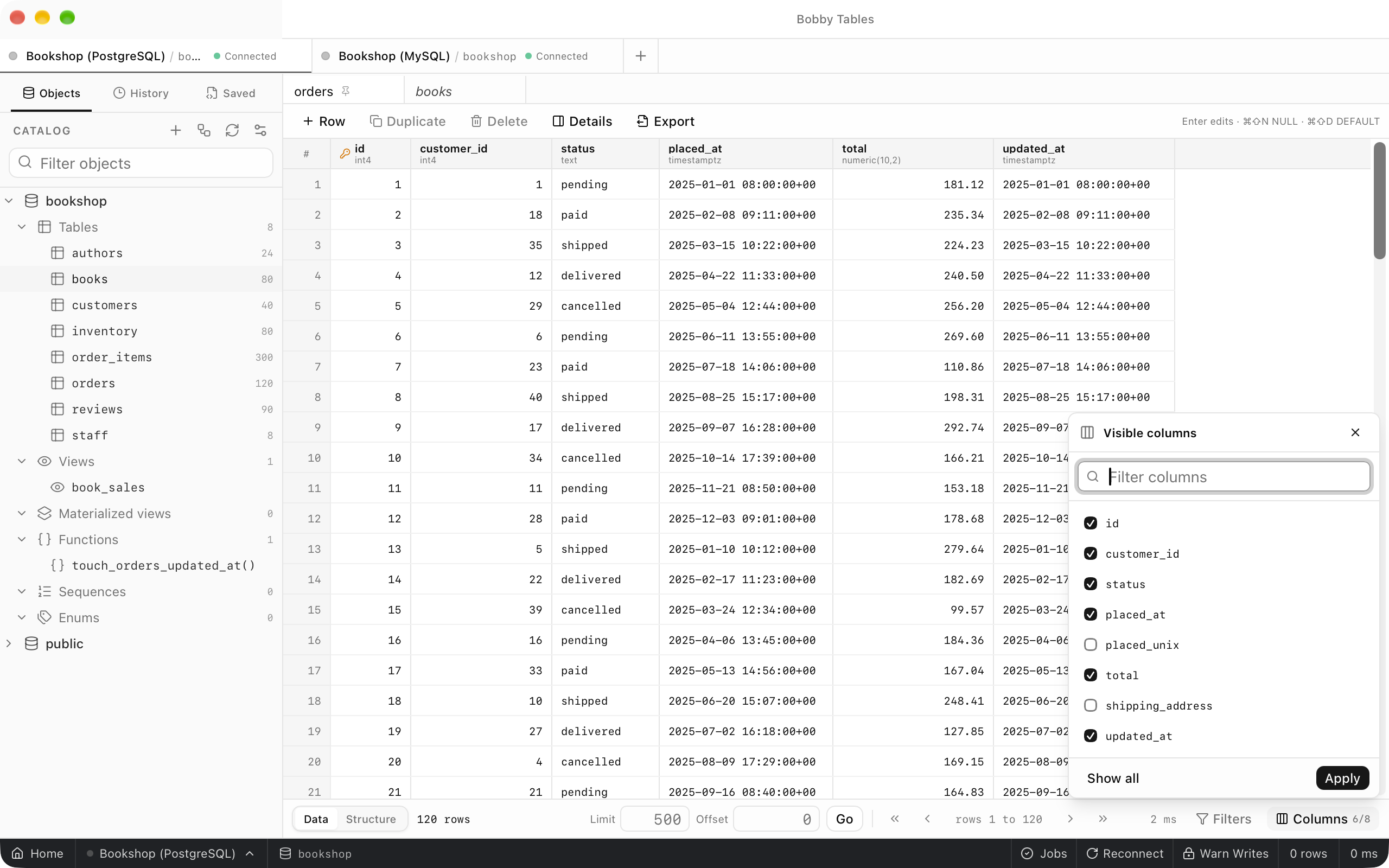
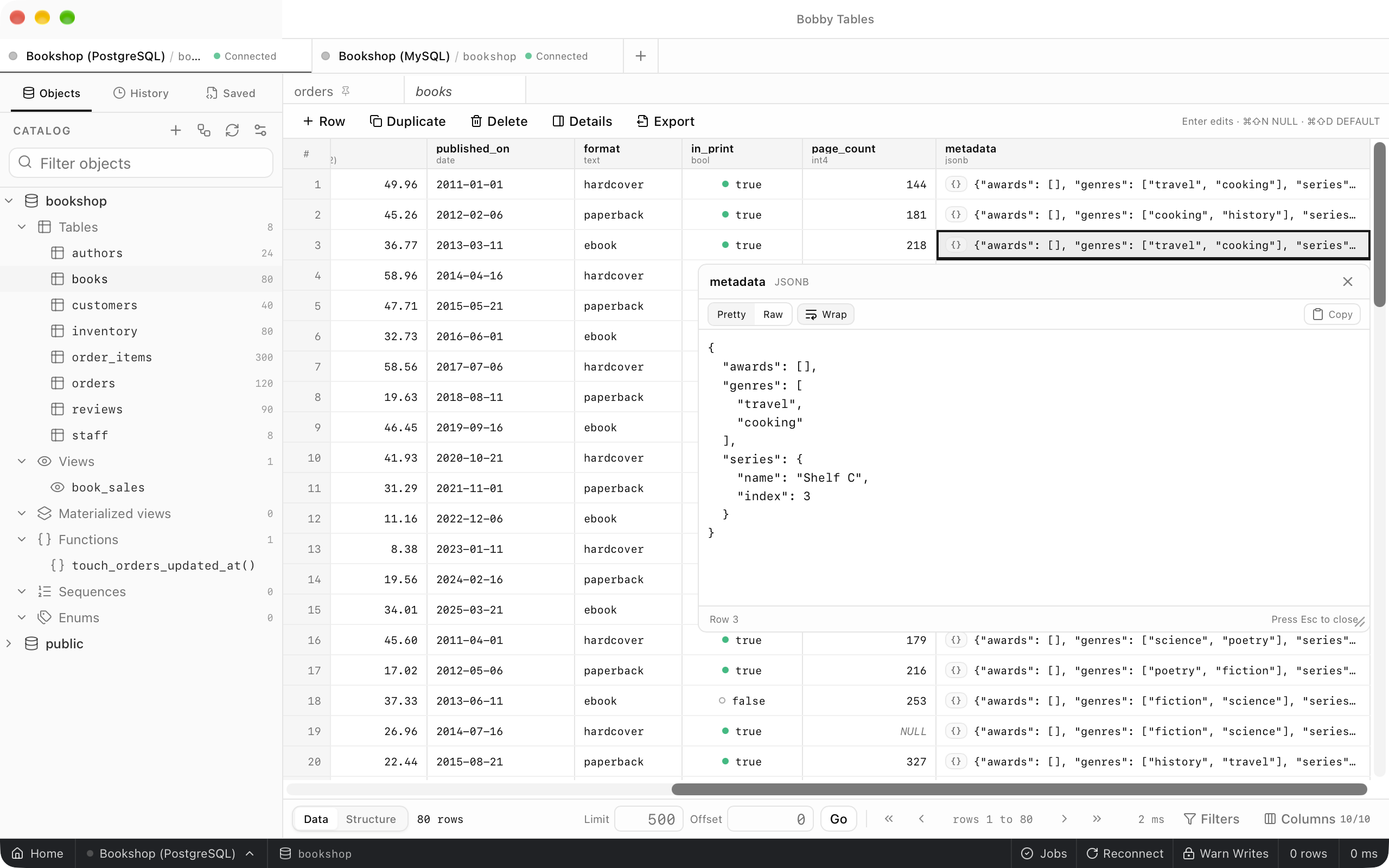
Columns opens Visible columns, where you untick columns and choose Apply, and Show all brings them back. For a long value, right-click the cell and choose Quick Look. It formats JSON, offers Raw, Wrap and Copy, and closes with Esc.
Views and copying
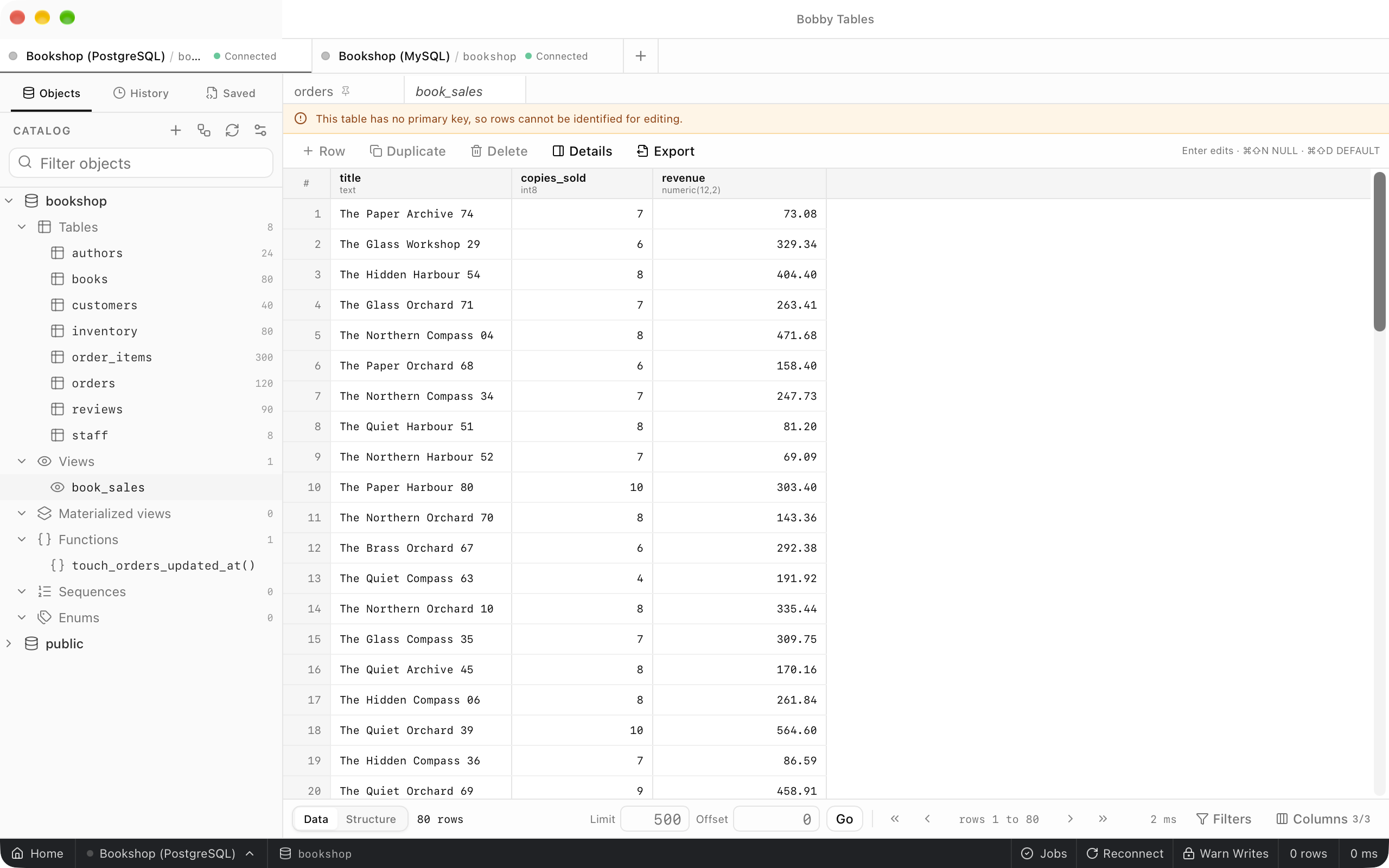
Views open, page, sort and filter the same way as tables. A view has no primary key, so the grid shows This table has no primary key, so rows cannot be identified for editing. and disables the editing buttons. To copy, select cells, right-click and choose Copy, Copy cell value, Copy column values or a format under Copy as, which Results grid describes.
Good to know
- Sorting, filtering and paging run on the database server, and the console lists each query the app sends. The console shows values as parameters, while the
SQLline shows them inline. - NULL appears as an italic
NULL, never as an empty cell. Default filter stateinPreferences>Datadecides whether a table reopens with its last filters.